Vocabularies
Manage the seven lookup lists that power dropdowns across SmileLine.
By the end of this page you'll know how to add, rename, reorder, archive and restore entries in SmileLine's lookup lists — and where each list is used.
The seven lists
Each list has its own page under Settings, and they all work the same way:
| List | Where it's used |
|---|---|
| Treatments | The treatment catalogue journeys are opened for; website forms need a default treatment. Default duration (min) is how long a consultation for it takes — the length of the free slots Today's booked step offers (45 minutes when empty and no appointment type defaults to this treatment). Consultation practitioners is who takes those consultations; none ticked means everyone at the site |
| Lead sources | Where enquiries come from — stamped on new leads and feeding attribution. SmileLine adds one automatically when a lead arrives with a utm_source or ad click id that matches nothing in the list (up to 50 active sources) |
| Lost reasons | Picked when a journey closes without treatment; drives the Lost journeys report |
| Cancellation reasons | Picked when an appointment is cancelled |
| Contact methods | How the team reaches leads — offered by the Today page's contact wizard |
| Tags | Free-form segmentation for patients — filter and bulk-tag from the patients list |
| Appointment types | Visit types with default durations, used when booking appointments |
Only owners and admins can change these lists. Members see them read-only.
Appointment types start with eighteen researched defaults — from a 45-minute new patient examination to a 15-minute review — each with a diary colour, a duration, its online-booking and confirmation rules and the CRM treatment it books. After that the list is yours to rename, extend or archive; see Clinical catalogue.
Add an entry
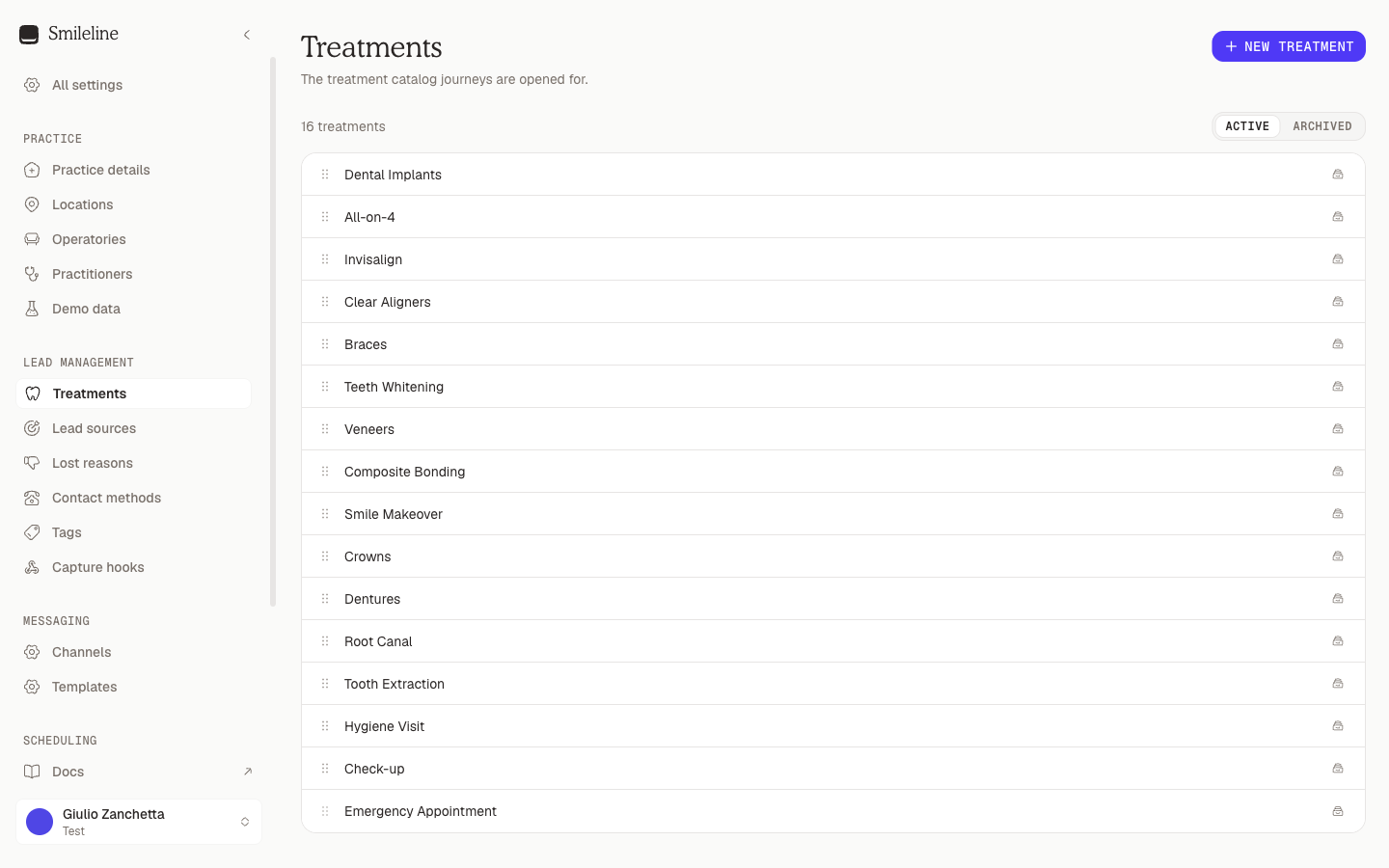
Open the list under Settings — for example Settings → Treatments.
Click New treatment (the button is named after the list you're on).
Type the Name and confirm — that's the whole form.
The new entry is available in its dropdowns immediately.
Rename an entry
Click the entry's name (or the pencil icon that appears on hover), edit it, and press Enter. Press Escape to cancel. The new name shows everywhere the entry is used — including on existing records.
Reorder a list
Drag the grip handle at the left of a row to move it. The order you set here is the order dropdowns show across the app, so put the common picks on top. The handle also works from the keyboard: focus it, press Space, move with the arrow keys.
Practitioners are the one list without manual ordering — they always sort alphabetically. See Practitioners.
Archive and restore
Never delete-and-retype: archive instead. Archiving hides an entry from every picker while existing records keep it, so history and reports stay intact.
- Archive: click the archive icon on the row. The confirmation toast offers Undo for a few seconds.
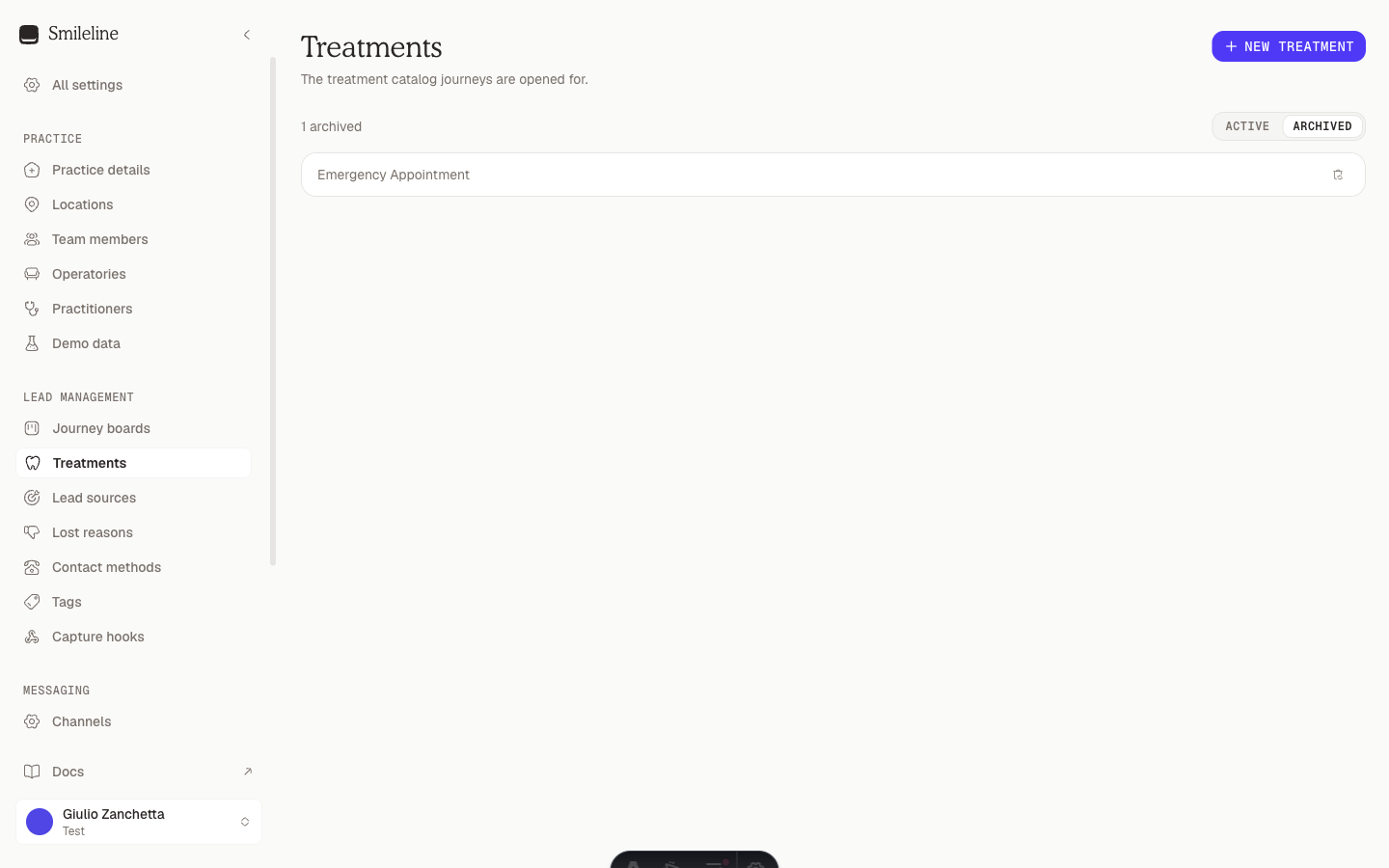
- Restore: switch the view toggle above the list from Active to Archived, then click the restore icon on the row.
SmileLine won't archive a treatment, lead source or appointment type while active work still needs it. Resolve the item named in the error first. This includes active journeys, unfinished appointments and enabled capture, booking, automation, referral or lead-ad defaults. Closed journeys, completed or cancelled appointments, and other historical records don't block an archive.
Sales pitches
Settings → Treatments carries one thing the other lists don't: the sales pitch your team reads on a call. It comes in two halves, and the lead's Pitch card shows them together.
- The Practice pitch, in the card above the list, is what's true on every call whatever the treatment — how you open, what you charge for a consultation, the objections that come up every time.
- Each treatment then has its own pitch, on the row: click Pitch (or Add pitch if nothing's written yet), write it and click Save.
Both use the same editor: bold, italic, a heading, bullet and numbered lists, links, and images from your practice's image library — the same library the email editor uses, so a photo you've already uploaded is one click away.
Everyone who can work the queue can read a pitch. Writing one needs settings access, the same as the rest of this page.
A treatment keeps its pitch when you archive it, so a journey opened before you retired the treatment still shows the right thing on the call.