Outcomes and undo
Record what happened on each queue item with the outcome wizard, and undo a just-recorded outcome.
By the end of this page you'll be able to work a queue item start to finish: say what happened, set the next reminder, and take it back within a minute if you picked the wrong thing.
Record an outcome
Open a row from the Today queue. The lead appears in the work panel on the right, headed by the patient and the treatment (Grace Taylor - Invisalign) with the due time beside it; click the name to correct it in place, or the treatment to pick another. If anyone has tried this enquiry before, the heading also says how many times (3 attempts) — every outcome already recorded on it, AI calls included. Below the heading, the Call Grace button dials the number shown on it, and the steps follow one at a time; Back returns to the previous one. Treatment (again), value, owner, mobile and email are edited in the Details block further down, under Recent activity.
Call the lead with the Call button, which carries their number, then answer How did the call go?: click We spoke or No answer (or press Y / N). If nobody picked up, the Call back row under No answer logs the attempt and books the next try in one click (1 / 2 / 3 pick the slot).
If the lead left no mobile number, their email address takes the number's place and the round button beside it opens the Chat tab (with neither on file, the step says No phone number on file), and the step asks Did you reach them? instead. Reached (Y) leads to the same answers as We spoke, with Email pre-selected under How did you reach them. Not reached (N) offers only I sent a message and the give-up option, the reminder step offers Email only, and Send msg & Continue is available straight away. The queue row reads First contact rather than First call. Add the number in Details and the call flow returns.
Pick what happened. After Yes:
- They're thinking about it
- They want to be contacted again later
- They booked a consultation
- They're not proceeding
Then choose how you reached them under How did you reach them?, which is required and is what powers your contact-rate reporting.
After No:
- I called but didn't speak to them
- I didn't call — I sent a message
- Give up on this lead — not proceeding
Each option also answers to its number key, 1–4.
Finish the branch you landed on (see below) and click Done (or press D).
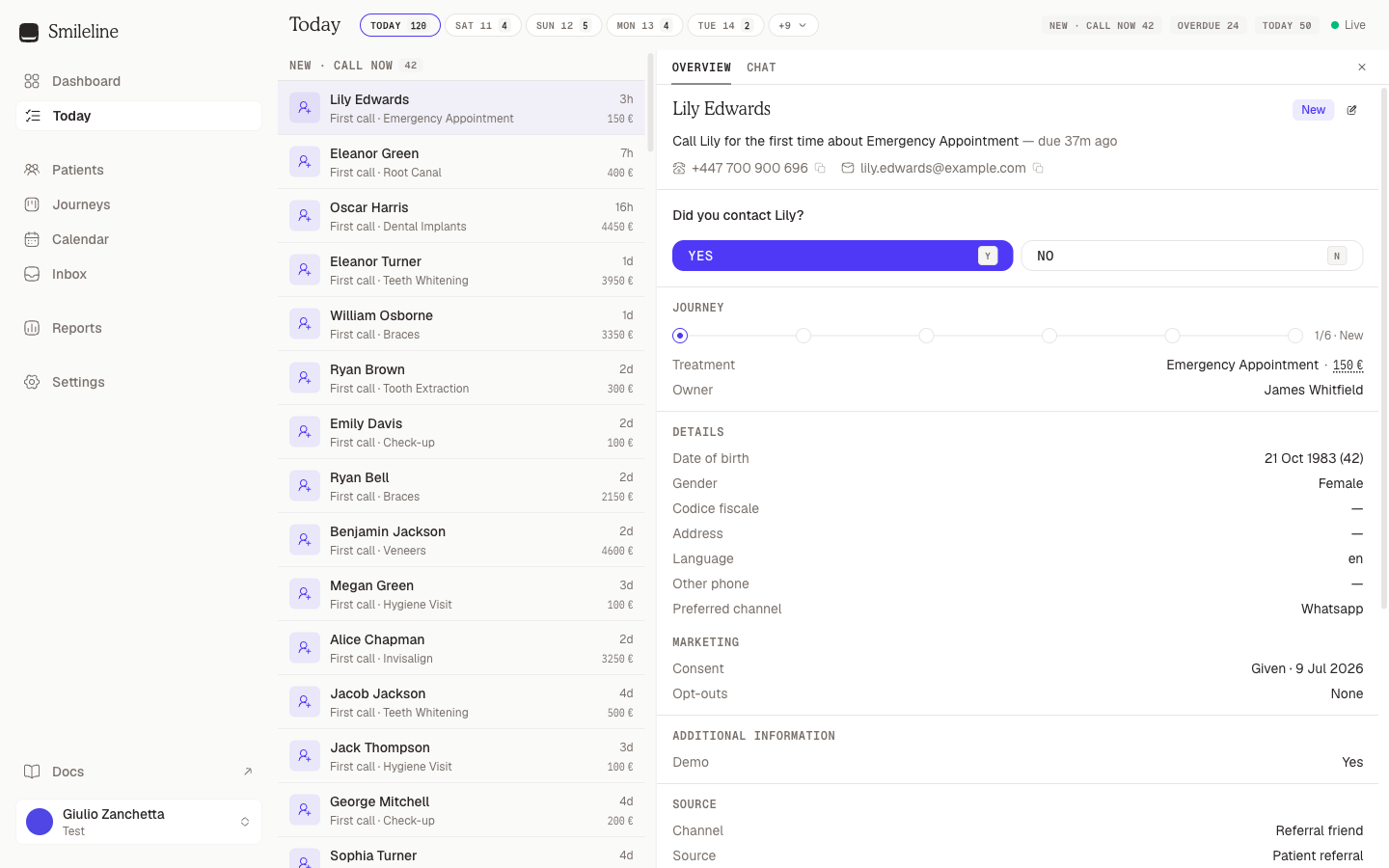
Once saved, the item leaves the queue and the panel automatically opens the next actionable item — you can work the whole queue without touching the mouse.
If they booked
The booked path asks When is the consultation?, then to Confirm the value (optional — it prefills the journey's estimate) and add a Team note. Click Done to finish. Booking moves the journey forward to your board's consultation-booked stage.
The consultation date is what puts Did name attend their consultation? in the queue on the day, so the lead never goes quiet after it is booked. Done on this step is the booking itself: it stays greyed out, with Pick a time to book the consultation. under the slots, until you have chosen a slot or the step has found a booking the diary already holds. A lead is never marked booked with nothing in the diary.
Book the slot without leaving Today
The step opens with a sentence — You are booking service for length — and both are yours to change. Picking another service changes the lead's service everywhere (the title of the panel and Edit patient details change the same one; the value is left as it is). The length starts at the service's own and only applies to this booking. A time already chosen is kept: changing the service leaves it exactly as it is, and changing the length keeps the same start when the longer (or shorter) consultation still fits there. When it would run into another booking or past working time, nothing changes yet — the diary opens on that slot at the new length, in red, so you can move it; Cancel leaves the consultation as it was.
Under When is the consultation? the step lists the next free slots — each with its day, time and the practitioner's avatar and name — long enough for this treatment's consultation. Click one and it is chosen; Done then books it and records the outcome in one go, so the appointment is in the diary with the journey's treatment on the card. There is no date to type: a consultation always has a time and someone to see.
How long a consultation takes comes from Default duration on Settings → Treatments; empty falls back to the appointment type whose default treatment it is, then 45 minutes. Who it can be with comes from the treatment's Consultation practitioners (none ticked means everyone at the site). Only practitioners assigned to the site are offered; one with no rota is offered inside the site's opening hours.
More times… opens the site's diary almost full-screen — the same grid as the Day, with a column per practitioner, the rota shaded and the day's bookings drawn:
- Move the pointer over the grid and an outline shows where the consultation would land, with its times and length written on it (13:30–14:30 · 60 min): green where it is free, red where it overlaps a booking or falls outside working time. The same label follows the slot while you drag or resize it.
- Click the date above the grid for three months at once, each day tinted by how full it is (Finding a free day); the tint counts the practitioners who can take this consultation, or the one the list is filtered to. +1W, +3M and +6M jump ahead.
- Click to place it — or drag over empty time to set its length too — then drag it to another time or practitioner, or drag its bottom edge for more or fewer minutes. The placed slot pulses green while it is free and turns red when it is not. The footer names the practitioner, When (the day and the time in one field — another day turns the diary to it) and Duration — all can be set there by keyboard — and asks for a room where the site books by chair.
- The Next free slots list beside the grid covers seven days at a time; filter it to one practitioner, or tick Show everyone at this site when the treatment narrows the list. With Anyone, the times are shared out between the practitioners who are free rather than all offered with the first. Each day has its own heading, which stays in view while you scroll, and every row repeats its date beside the time, next to the practitioner's avatar. Times that have already passed are never offered: the part of today behind the clock is greyed in the grid and turns red under the pointer, and when nothing is left today the list says so and starts at the next working day. Click a row and the consultation is placed there and the diary turns to that day and time.
- Use this slot brings the choice back to the step. A slot outside working hours asks you to confirm with a second click. A slot that overlaps another booking asks for a reason, which is kept with the appointment — anyone booking from Today can do this, whatever the diary's own overbooking rule.
Where the booking goes depends on the site:
- Own diary. The appointment is created in the same commit as the outcome. If the slot was taken in the meantime you are told so and asked to pick another.
- Connected practice-management system. When the patient's site is covered by a connected system, the slot is booked there first (the dialog says which system), and for Dentally and Open Dental the free times are that system's own working hours minus every booking Smileline already knows about, so the list and the colours on the grid always agree. Smileline's copy is listed at once and that system's answer replaces it, practitioner by practitioner, a moment later. A practitioner who is not linked there is named under the list and has no column to book in; if it cannot answer for someone, or for a length it does not search (under 5 or over 240 minutes), the list says that some times come from Smileline's copy of the diary. Today waits for the system to accept the booking, then records the outcome against that appointment; a rejected slot records nothing, and you pick another. A connected system will not take a slot that overlaps another booking. If the lead is not yet linked to that system, a dialog looks them up there by their email and number: pick their record, or — with Dentally — choose None of these — create in Dentally, fill in what Dentally still needs, and the booking carries on from where it stopped. Should it take longer than a minute to answer, the booking is safe: Check again in a moment, or Record without the booking to carry on with the slot as a date only.
Already in the diary lists the lead's upcoming bookings — reception may have booked the consultation already, or an undone outcome left one behind. Pick one instead of booking a second appointment.
The step also carries the Booking deposit block when Stripe is connected, so the deposit link goes out on the same call — see deposit requests.
Whichever way the consultation was booked, marking the appointment attended or missed — in the Day, by a connected system, or from the attendance question itself — answers the question once: the row leaves Today and the stage moves.
Booking from Today is a web feature. The mobile app keeps the plain date field.
If it's an attendance question
A Did name attend their consultation? row asks one thing:
- They attended (Y) — moves the journey to your board's consultation-attended stage.
- They didn't turn up (N) — moves it to failed-to-attend.
- Give up on this lead — not proceeding (P) — closes it as lost, exactly as elsewhere in the wizard, including the warning below five attempts. Its Set a reminder instead records the no-show and books the re-book attempt.
The first two then land on the reminder step, so you can book the follow-up call or the re-book attempt in the same pass.
You can also answer this from the diary: marking the appointment Fulfilled or No-show in the Calendar moves the stage the same way, and so does a connected practice-management system.
If they're not proceeding
The wizard asks you to confirm closing the lead as lost. Add a Team note, then click Not proceeding — the button arms and asks once more: Confirm — closes this lead as lost. A lead closed this way gets no follow-up task, and any of its remaining call-now cards leave everyone's queue.
Reason appears only when you spoke to them. Every reason a practice keeps — too expensive, chose another practice, timing not right — describes something the lead said, so the field is left out when nobody ever reached them. If a never-reached enquiry needs a reason on the record (a spam or duplicate one you want marked junk, for instance), close it from Journeys instead, where the full list is offered.
Giving up on a lead you never reached
Choosing Give up on this lead — not proceeding on a lead with fewer than five attempts logged opens a warning that names the count and offers the alternative:
- Set a reminder instead takes you to the reminder step, where you book the next call as usual. The attempt is still recorded.
- Close anyway — not proceeding turns the same dialog into a second step that asks why you are closing now. Write a reason and click Confirm — closes this lead as lost; the button stays disabled until the reason is written. The reason is saved as the closing note, on the enquiry and in its timeline. Back returns to the warning. On the mobile app the same rule applies: the Team note must be filled in before Close anyway will close the lead.
Press Escape to go back to the closing step unchanged. Once five or more attempts are logged the warning stops appearing and the arming button is the only confirmation.
The count is the same one the card shows as 3 attempts: every outcome recorded on the enquiry, AI calls included.
Set the next reminder
Every other outcome ends on the reminder step:
- Remind me to — Call, SMS, Email or WhatsApp.
- When — defaults to two days from now at 9:00.
- Assign the next task to — defaults to you; pick a teammate or leave it unassigned.
- Team note — anything the team should know.
Click Done to save. The reminder becomes a follow-up task that surfaces in the queue on its due day — every outcome that lands here leaves one, so no lead is left with nothing scheduled. If you do not want to chase this lead again, go Back and choose Give up on this lead — not proceeding instead.
Message them first
Send msg & Continue, beside Done, messages the lead before the reminder is saved. It appears once somebody has already tried this lead, or the lead has messaged the practice, so a brand-new enquiry gets a call first — unless the lead has no phone number, when it is there from the start. Write the message or insert a template, attach files if you like, and tick the channels to send on — every channel the practice has connected and the patient can be reached on is ticked to begin with (SMS is text only; WhatsApp carries the first attachment). Outside the 24-hour WhatsApp window the WhatsApp copy has to be an approved template, so the dialog asks you to pick one. Send & continue sends on each ticked channel, then saves the reminder exactly as Done would. If a channel fails, the dialog stays open showing why, and Retry failed sends only what did not go out. The messages land on the patient's conversation and timeline like any other.
Everything the wizard does — completing the task, stamping the journey's first contact, any stage move, the next task and the timeline entry — is saved in one go, so the patient's record always tells a consistent story.
The stage shown beside the lead's name on Today is a read-out, not a control: it follows what you record here, what the diary says about the appointment, and what a connected practice-management system reports. To set a stage by hand, drag the card on Journeys or use the Stage dropdown on the patient record.
Undo a just-recorded outcome
Clicked the wrong option? You have a moment to take it back.
After you click Done, a confirmation toast appears in the corner — for example, Outcome recorded or Consultation booked. When the outcome booked a slot, the toast also says that the diary booking stays: undo takes back the outcome, never the appointment. Cancel that from the diary, with a reason, if the slot was a mistake.
Click Undo on the toast.
The item returns to its place in the queue and reopens in the work panel. The task is reopened, any new follow-up task is cancelled and the earlier journey state is restored. The original outcome stays in the history; SmileLine appends the correcting timeline and stage events beside it instead of deleting evidence.
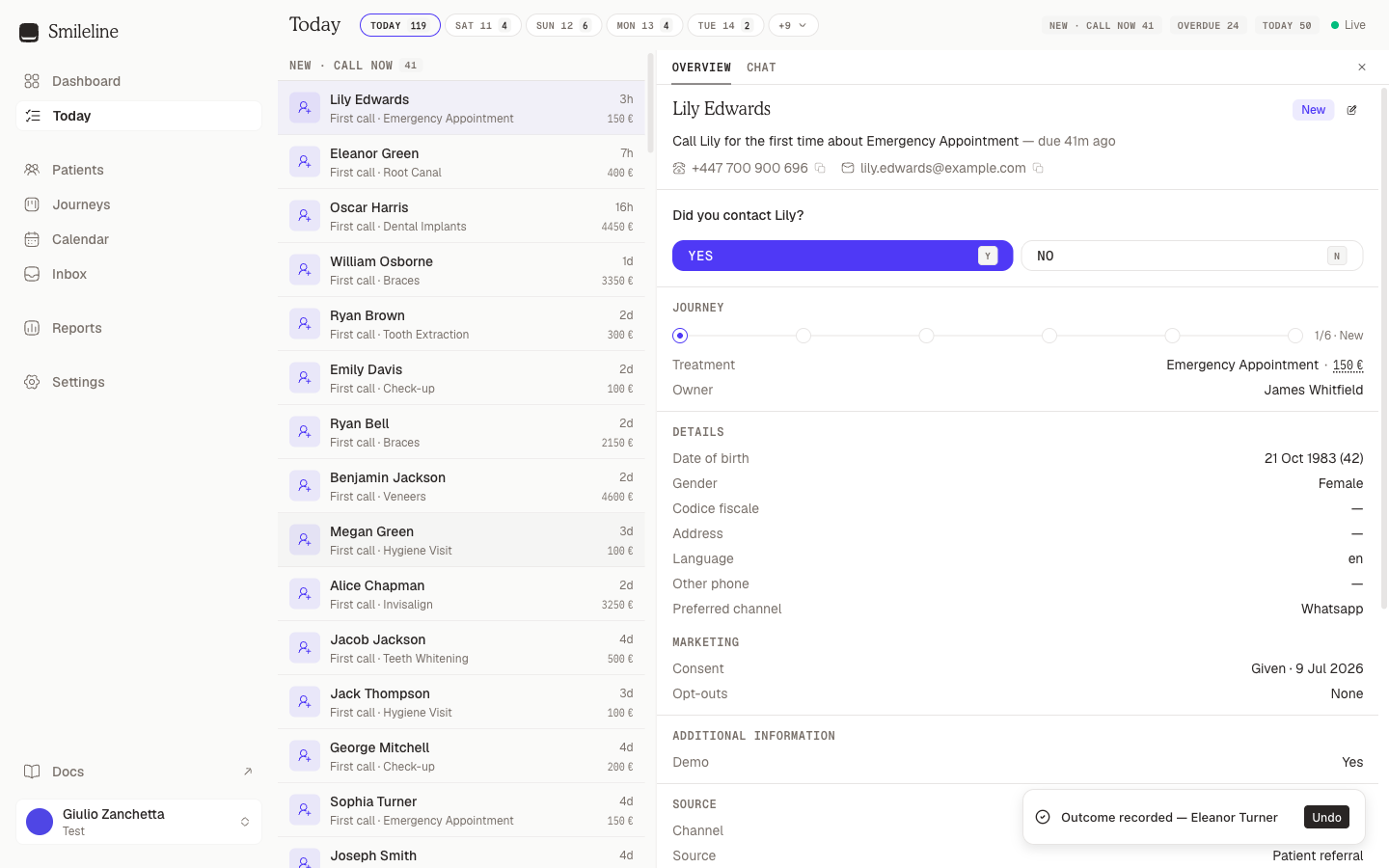
Undo is a 60-second window, and only the person who recorded the outcome can use it. The toast shows for a few seconds — once it's gone, or once the journey has moved on for another reason, the undo is no longer available. After that, correct things from the patient's record instead.
If a teammate beats you to a lead, SmileLine tells you: opening a lead someone else has open asks whether you want to take over, and recording an outcome on a task that was just completed shows an error and refreshes your queue.