Attribution
How SmileLine records where every lead came from, and where to see it.
By the end of this page you'll know what SmileLine records about a lead's origin, how the channel is worked out, and where that information surfaces in the app.
Touches: the capture record
Every time a lead arrives through a website form, a tracked call or a capture endpoint, SmileLine records a touch: a snapshot of where that contact came from at that moment. A tracked call carries the caller's web session — the UTMs and click IDs their browser held when the number was assigned — so a phone enquiry attributes like a form one. A touch stores:
- When it was captured and how it arrived (form, webhook, Zapier, lead ad, WhatsApp, SMS, call, chat, manual, import)
- The derived channel (see below) and the source name
- The UTM set: source, medium, campaign, term, content
- The landing URL and referrer domain
- Which capture form (hook) received it, and the affiliate label if the hook carries one
A patient can accumulate several touches — an enquiry from a Google ad in March and another from Instagram in June are both kept. The first touch is treated as the origin; the newest one shows as Last touch when it differs.
Technical match data recorded alongside a touch (IP address, device details,
approximate geolocation, cookie snapshots, consent flags) stays server-side.
It is never shown in the app or returned by list APIs. When a server posts
on the visitor's behalf and forwards their address as client_ip, that is
the IP recorded rather than the posting server's own; see
Direct posting.
Channels on journeys
Each journey also carries a single channel — the origin bucket used to group boards, reports and the dashboard lead flow. Captured leads get it derived from their touch; manually created leads inherit the channel of their Lead source (each entry in Settings → Lead sources belongs to a channel — see Vocabularies).
The channel buckets are: paid search, paid social, paid AI, organic search, social, referral (website / friend / practice), existing patient, email, chat, direct, phone, walk-in, print, AI, other and unknown.
How the channel is derived
For captured leads the channel is worked out automatically, in order of confidence:
- Ad click ids — a
gclidmeans paid search, anfbclidmeans paid social, anoppref(OpenAI's ChatGPT Ads click id) means paid AI, and so on for the other platforms' click ids. utm_medium— explicit mediums likecpc,paid-social,paid_aioremailwin over guesses.- Referrer — a social network referrer becomes social, a search engine becomes organic search, an AI assistant becomes AI. A visit from chatgpt.com with no click id stays AI, not paid AI.
- Otherwise the lead counts as direct — a visit with no campaign parameters and no external referrer.
You don't configure any of this. With the tracking script installed, the visitor's marketing parameters travel with every captured submission automatically. If you post to a capture endpoint from your own code instead, make sure your form forwards the page's query parameters (see Post leads from your own code).
How the lead source is chosen
A new patient created from a website form or a tracked call also gets a Lead source from Settings → Lead sources, chosen from the same signals — you no longer pick one per tracking pool. In order:
- Name match — the
utm_source(or the ad platform behind a click id such asgclidorfbclid) is matched by name against your Lead sources list, within the channel the medium or click id implies:utm_source=googlewithutm_medium=cpcpicks Google Ads, a paidtiktokpicks TikTok Ads, a paidfacebook,instagramormetapicks Facebook / Instagram Ads, and anopprefclick picks ChatGPT Ads (seeded for new practices; an existing practice gets it on its first ChatGPT lead). A bareutm_sourcewith no medium matches across every channel. - Create — a paid-search, paid-social or paid-AI source that matches nothing is added to the list under its own name (a
bingclick becomes Bing); a bareutm_sourcethat matches nothing (sayutm_source=leaflet) becomes a new source on the Other channel. Creation stops at 50 active lead sources; referring websites never create sources. - Channel anchor — organic search, social, email, AI assistants, referring websites and phone calls use your first lead source on that channel (Organic search, Social media, Email, AI assistants, Phone call, …). Paid channels never anchor, so an unmatched Bing click is not booked as Google Ads.
- Fallback — anything else (a direct visit with no tags, a submission with no attribution) uses the form's Lead source if the submission has no attribution. A plain direct visit with no form fallback gets Website; a submission with no attribution and no fallback gets none.
A call to a rotating pool number follows the same rules as a form when the caller had a web session, and gets Phone call when they didn't. A call to a static tracking number skips the list above entirely: it is attributed to the one lead source pinned to that number. Sources SmileLine creates appear in Settings → Lead sources like any other; they are not logged in the activity log as a user action.
Where you see attribution
On the lead
Open a lead from the Today page: the Source group on the lead panel shows Channel, Source, Campaign, Capture form and Captured, plus a Last touch row when a newer touch exists. Leads created by hand show Manual / untracked with their lead source.

On the patient record
Open the full patient record: the Source group on the profile card lists the whole first touch — channel, source, capture form, captured time, affiliate, landing URL, referrer, every UTM parameter, the ad campaign / ad group / ad / placement / network / keyword / match type / device, every click ID under its own parameter name (gclid, fbclid, msclkid, ttclid, li_fat_id, …, plus pixel IDs such as fbp and fbc), and the GA client and session IDs. When a newer touch exists it appears as its own Last touch group. Nothing here is editable; the lead source in the Marketing group above it is.
On a form's deliveries
Settings → Website, open a form and pick a delivery under Deliveries, then switch to Field mapping: the Attribution block above the payload names every marketing parameter that arrived with that submission, its value, and the channel and lead source it produced. When nothing arrived it says so, and points at the fix — attribution is never a mapping problem, it is a question of what the sender forwards.
In reports
Attribution feeds several reports (see Reports):
- Lead sources — channel mix, top sources and how each converts
- Attribution (UTM) — touches by UTM source and campaign, with the journeys, wins and revenue credited to each first touch
- Lead volume and the Conversion funnel — split and stacked by channel
- The dashboard's Conversion by channel card and lead flow graph both start from the channel
Conversion by channel
The dashboard's Conversion by channel card answers the question channels exist to answer: of the leads that arrived in the selected window, how many came from each channel and how many of those booked. The bar chart puts leads next to bookings per channel; the table beside it adds the share of the whole period, the booking rate, journeys won, revenue won, ad spend and the return that spend produced, and every channel opens into the campaigns and sources behind it.
A lead counts in the window it was created in, and its bookings and wins count whenever they happened since — so 50 leads with 10 bookings is 20% however long those bookings took to land.
Each channel row carries a small trend line of its leads over the window, and the bar behind its share draws the same proportion the number states.
Expanding a channel
The arrow beside a channel opens the rows underneath it, each with the same columns as the channel itself. What a row is depends on what the leads carried:
- Paid search, paid social, paid AI and email break down by campaign — the
utm_campaignon the click, or the campaign name from your connected ad account when the click carried its campaign id. - Organic search, social and AI assistants break down by source — the
utm_sourceor the site the visitor arrived from. - Phone, print, walk-ins, referrals and existing patients have no web touch to read, so they break down by the lead source recorded against the patient.
Rows are attributed on the journey's first touch, the same touch its channel came from, so a row and its channel always describe the same visit. A journey with nothing recorded shows under Unattributed. Where a channel has more rows than the card lists, the remainder is gathered into Other campaigns — the rows always add up to the channel above them.
A campaign row only shows ad spend when its clicks carried the campaign id, or when its utm_campaign matched the name of a campaign in a connected ad account. Spend that could not be matched to a campaign's leads still appears — as its own row, with leads at zero — rather than being dropped.
Return on ad spend
Return is revenue won divided by ad spend, shown as a multiple: 4.2× means every £1 spent came back as £4.20 of won treatment. Ad return in the KPI strip does the same sum across every channel that took spend, so spend that produced nothing still counts against it.
Spend comes from your connected ad accounts — Google Ads lands on paid search, Meta and TikTok on paid social, ChatGPT Ads on paid AI — which is the same rule that puts an ad click's lead in that channel.
Channels SmileLine has no cost for — organic search, referrals, phone, walk-ins, print — show a dash rather than a return. Nothing in the app records what those cost you, and a return computed without a cost would be wrong rather than optimistic. A channel that took spend and produced nothing shows 0×, which is a real answer.
Ad spend is read in the ad account's own currency and shown in the practice's, so a practice whose ad accounts bill in a different currency should read the return as indicative.
The lead flow graph
The dashboard's Lead flow card reads left to right, one column per dimension. Columns offers ready-made sets — channel to contacted by to outcome, lead source to outcome, campaign to lead source to outcome, owner to current stage to outcome, treatment to contacted by to outcome — and you can still build your own from two to four columns underneath.
Hover any card and the rest of the graph answers for that card alone: every other column switches to the leads it shares with the one you are pointing at, and the percentage becomes its share of that card rather than of the whole period. Hovering Organic search turns the outcome column into organic search's own outcomes. Click a card to pin it, click the background to release it.
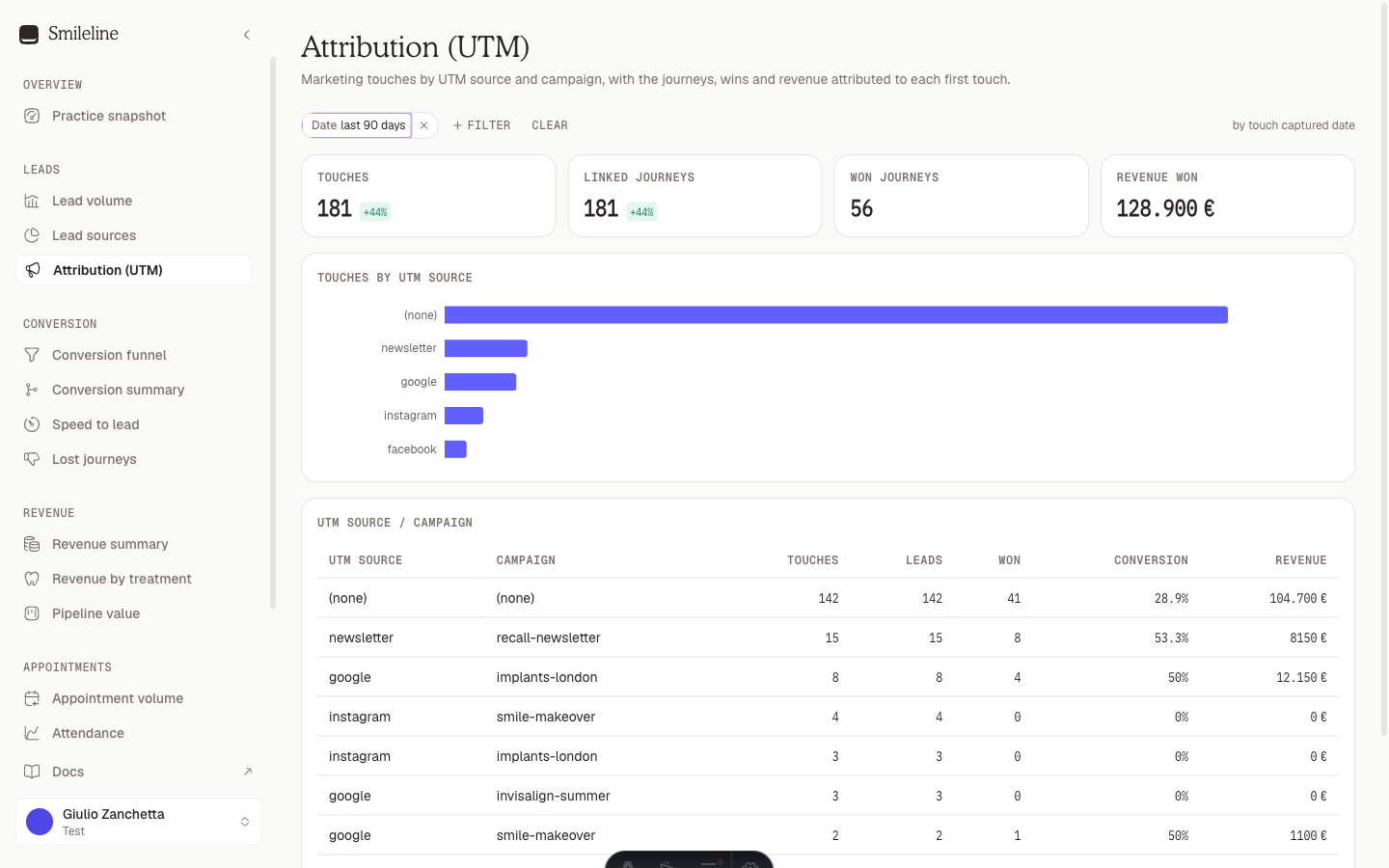
Every report accepts a Channel filter, so any number in the app can be narrowed to, say, paid social only.
Keep attribution clean
- Set each form's Lead source if the submission has no attribution — it's used only when a submission arrives with no marketing parameters, since tagged submissions pick their source from the campaign data.
- Keep the Lead sources vocabulary tidy and each source on the right channel, since manual leads depend on it entirely.
- Use consistent
utm_campaignnames in your ads — the Attribution report groups by the exact string.