The patient record
Everything about one patient — contact details, tags, treatment journeys, and a full activity timeline.
Click any row in the patients list to open that patient's record. It gathers everything the practice knows about the person: profile details on the left, tags, journeys, and the activity timeline on the right.
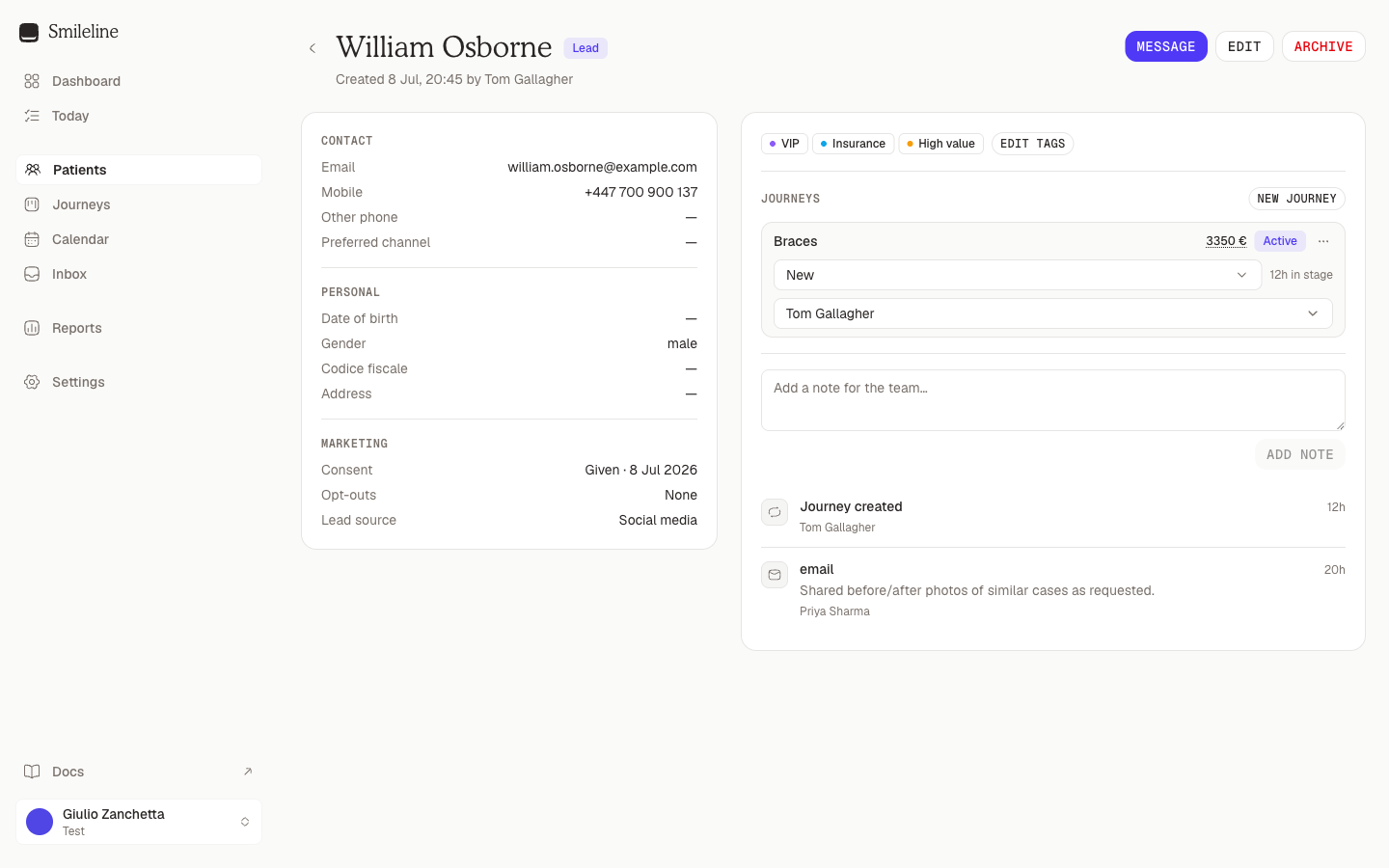
Header
The header shows the patient's name, status badge, and when (and by whom) the record was created. From here you can:
- CRM | Clinical — the workspace switch. CRM is this page; Clinical opens the same patient's clinical record — the tabbed record of the clinical workspace (clinical roles and the front desk; see Clinical chart). The switch appears only for members who hold both workspaces.
- Export (the download icon) — download the patient's full record as a JSON file (owners and managers only).
- Message — start a conversation with the patient in the Inbox.
- Archive — remove the patient from lists and queues (owners and managers only; the record and its history are kept). Archiving a Lead with fewer than five contact attempts asks twice: see Archiving a lead you have barely called.
If the record carries a medical alert, it appears as a banner right under the header — you can't miss it.
Archiving a lead you have barely called
Archiving takes a lead out of every list and queue, so it follows the same rule as giving up on a lead in Today. When the record's status is Lead and fewer than five contact attempts are logged across its journeys, Archive opens a warning that names the count:
- Keep the lead closes the dialog and changes nothing.
- Archive anyway turns the same dialog into a second step that asks why. Write a reason and click Archive; the button stays disabled until the reason is written. The reason is saved on the timeline as Patient archived. Back returns to the warning.
Enquiries, patients, and leads with five or more attempts keep the single confirmation. The count is the one Today shows: every outcome recorded on the lead's enquiries, AI calls included.
The clinical record
Clinical opens the same patient in the clinical workspace as one tabbed record. A single band at the top carries what must not be missed, and each tab owns the rest of the screen:
- The band — the patient's initials, name, date of birth with age (years and months for a child), every alert in force today as a coloured pill (red critical, amber warning; click one to open Medical), then on the right the patient's dentist (initials on their diary colour), their payment plan as a pill (orange private, teal NHS; both open Details), the account balance (red when the patient owes money, green when in credit; click it to open Account), the CRM | Clinical switch, and the Book and Message buttons.
- The tabs — Chart, Notes, Perio, Medical, Appointments, Orders, Account and Details. A tab appears only when your role can read something in it, and the open tab is part of the page address (
?tab=account), so a link lands on it. - Popup alerts — an alert flagged to show when the record opens does so once per browser session; it shows again when the alert is edited or a new one is raised.
- Unsaved work — switching tabs while a note or a perio exam still has unsaved changes asks you to Stay or Leave first.
Each tab is described on its own page: Clinical chart, Clinical notes, Perio, Forms and recalls (Medical and Appointments), Prescriptions, Lab cases and referrals and Letters (Orders), Account.
Details is the clinical side of the profile below: the basic identity (title, names, date of birth with age, gender, fiscal code, chart number), address and contact, and preferences (payment plan, dentist, hygienist, channel, time, language, location, the channel blocks, the medical alert and the note) in three cards. Every field edits in place exactly as on the CRM record; roles without patient-edit permission see plain text. Open in CRM at the top opens the same patient in the CRM workspace when your role has it. Status, tags, journeys, marketing preferences, the timeline and the source stay on the CRM record.
Profile
The left card groups the stored details:
- Record — the patient's status, and which location they belong to when the practice has more than one.
- Contact — first, last and preferred name, email, mobile, other phone, and the preferred contact channel.
- Personal — date of birth, gender, fiscal code, address, and any medical alert.
- Marketing — current SMS, email and WhatsApp marketing preferences and their evidence source, the global channel blocks, and the lead source. Team members with patient-edit permission can record a new preference event here.
- Source — the arrival record, read-only, for patients captured by a form, the widget, booking, a lead ad or a tracked call: channel, captured source, capture form, when it arrived, affiliate, landing URL and referrer, then every UTM (source, medium, campaign, term, content, campaign ID, source platform, creative format, marketing tactic, ad name), the ad hierarchy (ad campaign, ad group, ad, placement, network, keyword, match type, device), every click ID by its parameter name —
gclid,gbraid,wbraid,fbclid,fbp,msclkid,ttclid,li_fat_id,twclid,epik,sc_click_id,rdt_cid,opprefand the long tail — and the GA client and session IDs. Only fields that arrived are shown. Every field carries an icon beside its label, and channel, source and medium show the platform's own mark, so a ChatGPT Ads touch reads as ChatGPT at a glance. When a newer touch exists it gets its own Last touch group and the origin is labelled First touch. Patients created by hand have no touch, so the group does not appear. See Attribution. - Notes — the free-text note from the patient's profile.
Editing a field
Every field edits in place. Hover a row and it underlines with a pencil beside it; click anywhere on the value — not just the pencil — to open the editor for that field, with the right control for what it holds: a date picker for the date of birth, a dropdown for status, gender, preferred channel, lead source and location, switches for the channel blocks, and a text box for notes and the medical alert.
Press Enter to save, Escape to discard. Clicking away also saves. Notes and the medical alert take multiple lines, so those save with ⌘/Ctrl + Enter. The address opens all five parts — address lines, city, province and postal code — together and saves them in one go.
Each field saves on its own, so two people editing different fields no longer overwrite each other.
A patient must keep at least an email or a mobile number, so SmileLine blocks clearing whichever one is the last way to reach them. Status can only be changed while the record is active — use Archive to archive it.
Without patient-edit permission the rows are plain text, with no pencil and nothing to click.
Marketing permission is evaluated per channel. See Marketing consent for legal-basis, practice-policy and unsubscribe behavior.
Practice management system actions
When the patient's location is covered by an active PMS connection, the provider button in the header lets staff link the CRM record to their PMS patient and book against the provider diary. Booking needs that link.
Link to an existing patient first asks the provider itself for anyone with this patient's email or mobile number and lists them with their date of birth and postcode — families share a phone, so you choose the right person; nothing is linked for you. Below that you can still search the recently synced records by name.
With Dentally, None of these — create in Dentally opens the chart there instead. Dentally will not take a patient without a title, date of birth, sex, first address line and postcode, so the dialog asks for whichever of those the record lacks and saves them to the patient here too. The sex is the one exception: Dentally files a chart as male or female only, so that answer goes to Dentally and never changes the gender recorded in Smileline. The chart is filed under the site's default payment plan, with ethnicity recorded as "patient declined"; a site with no default payment plan in Dentally has to be given one there first.
A chart is only ever created once. If Dentally does not confirm the create, Smileline does not try again by itself: open the dialog a minute later — if the chart is there it is picked up, and if it is not, Create anyway is your decision after checking Dentally.
PMS appointment creation is asynchronous. SmileLine first saves a pending appointment and a durable operation, then asks the provider to create it. The dialog follows that operation until the provider confirms or rejects it. If a network result is ambiguous, SmileLine looks up the immutable appointment UID and never repeats the create request; the booking stays pending until it is reconciled or marked for manual review.
Every staff, online and PMS appointment uses the same practitioner and operatory reservation boundary. A normal staff booking or reschedule that overlaps either resource returns a conflict instead of double-booking it. An owner or manager may deliberately overbook only by supplying a reason; the extra capacity slot, actor and reason are retained. A provider-authoritative PMS collision is imported as Review required rather than silently accepted or discarded, and SmileLine creates a due task in Today so staff have a concrete review surface. Each appointment has at most one practitioner and one operatory.
A staff, online or API booking always names its practitioner, and at a site whose location settings say Every appointment here needs an operatory it names the chair too — the save is refused otherwise. An appointment that arrives from the PMS, a CSV import or a practice transfer without one is kept and shown as Practitioner unassigned or Operatory unassigned until someone assigns the missing participant; it never has to be re-entered.
PMS updates may move an appointment forward through its normal milestones, even when an intermediate update arrived late. SmileLine does not silently move an appointment backwards or replace a completed, cancelled or no-show outcome with a different outcome. That provider row opens a correction under Settings → Integrations instead of being applied automatically. Reminders stop at the provider boundary while the two facts disagree. An appointment editor can keep the local fact or apply the reviewed PMS projection; accepting it creates an urgent task to inspect payment, messaging and other effects that may already have happened.
Treatment plans, invoices and payments synced from the practice software are recorded in the patient's own ledger and appear under the provider's financials on the patient record: total charged, total paid and the balance, with each issued invoice and its lines. Open treatment plans appear first; click Show N completed treatment plans to reveal completed plans. Each plan is a summary of its name, the provider's own status, its provider total and when it last changed. Smileline shows up to 50 plan summaries per patient and does not expose treatment-plan line items.
These financial records use the practice's fixed accounting currency: USD for the United States, GBP for the United Kingdom, and EUR for every other currently supported country. If a provider supplies an explicit currency, SmileLine accepts the financial row only when it matches that fixed currency.
See PMS integrations for connection health, site mapping and automatic polling.
Tags
Tags sit at the top of the right card. Click Add tags (or Edit tags once some are applied) and tick or untick tags in the list. Changes save immediately. Tags are created and managed in Settings.
Journeys
The Journeys panel lists the patient's treatment journeys — one per treatment they've enquired about. For each journey you can see and change:
- the Stage on its board, via the dropdown,
- the Owner (the team member responsible), via the dropdown,
- the estimated value — click the amount to edit it,
- the status: Mark won, Mark lost…, or Reopen from the actions menu.
An active journey shows Stale when it has remained in the current stage for at least that stage's configured Rotten after (days) period. A future snooze suppresses the badge until the journey wakes; won, lost, and archived journeys don't show it.
Click the treatment name to jump to the journey's board, or click New journey to start tracking a new treatment interest for this patient. See Move, close, and reopen for what each status change does.
Timeline
The timeline is the patient's full history, newest first: notes, calls, messages across every channel, form submissions, stage changes, tasks, and appointment events.
To add a note for the team:
Type into Add a note for the team… at the top of the timeline.
Click Add note. The note appears at the top of the feed, with your name on it.
Older entries load with the Load more button at the bottom of the feed.