Message templates
Insert reusable message snippets in the composer, and manage the practice's template library.
Templates save you retyping the same answers — opening hours, directions, deposit reminders. This page shows you how to insert one while replying and how to manage the practice's template library.
Insert a template while replying
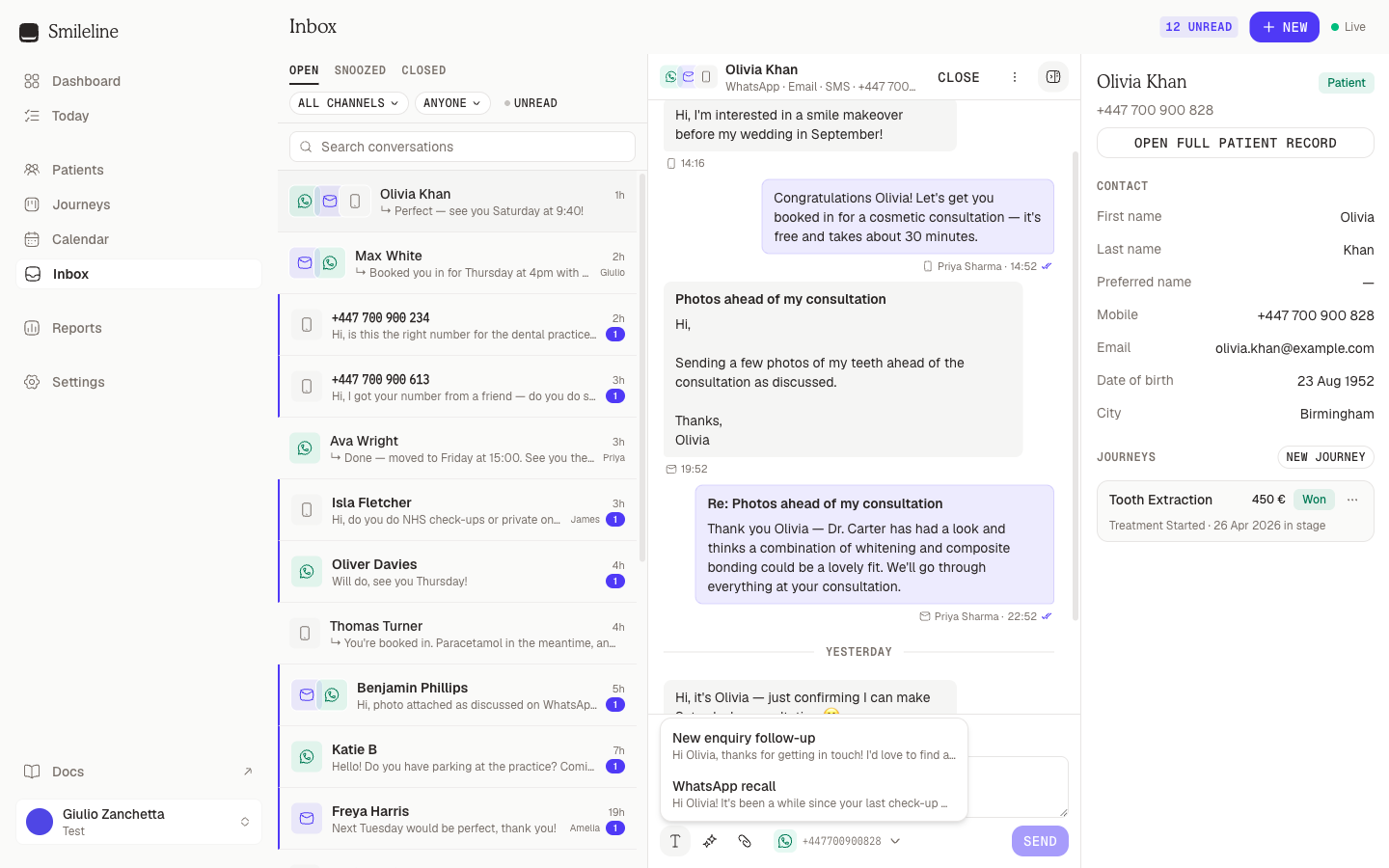
Open the conversation and click the template icon (the leftmost button under the composer, titled Insert template).
Pick a template from the popover. It only lists templates that fit the reply's channel, plus channel-agnostic ones.
The template body is inserted into the composer with its merge tags already filled in — the patient's name, your practice details and so on. What you see is exactly what will send.
Edit the text if you like, then send. On an email reply that is Cmd/Ctrl + Enter or the Send button; on every other channel Enter sends.
For email replies, a template with a subject also fills the subject field if it's still empty.
Merge tags
Template bodies can contain merge tags that resolve when the template is inserted:
| Tag | Resolves to |
|---|---|
{{patient.firstName}} | The patient's first name (their preferred name when set) |
{{patient.lastName}} | The patient's last name |
{{practice.name}} | Your practice name |
{{practice.website}} | Your practice website |
{{practice.signature}} | The email signature from Settings → Practice |
{{practice.logo}} | The email logo from Settings → Practice, as a picture |
{{location.name}} | The location's name |
{{location.phone}} | The location's phone number |
{{location.email}} | The location's email address |
{{location.address}} | The location's full address |
{{location.openingHours}} | The location's opening hours, formatted |
Location tags resolve against the site set as the automation location in Settings → Practice, falling back to your first location.
A tag that can't be resolved — for example a patient tag in an unlinked conversation — is inserted as blank text, never as raw braces.
WhatsApp templates and Meta approval
WhatsApp only allows free-text messages within 24 hours of the patient's last message. Outside that window — and when starting a new WhatsApp conversation — you must send a template that Meta has approved for your account.
Smileline handles the approval for you. Every WhatsApp-channel template is submitted to Meta automatically:
- The standard reminder set (booking confirmation, appointment moved, 48-hour and 24-hour reminders, after your visit, missed appointment, cancellation) comes with every practice as WhatsApp templates. They are submitted the moment your WhatsApp connection is active.
- A WhatsApp template you write yourself is submitted within a few minutes of saving it.
- Templates you already created in WhatsApp Manager are imported into the list, with their Meta status.
Each WhatsApp template shows its status in Settings → Templates:
| Status | Meaning |
|---|---|
| Not submitted | Waiting for a WhatsApp connection. Connect WhatsApp under Settings → Channels and it goes out by itself. |
| Submitting shortly | Saved; Smileline sends it to Meta within a few minutes. |
| In review at WhatsApp | Meta is reviewing it. Most decisions arrive within an hour; Meta allows itself up to 24 hours. |
| Approved by WhatsApp | Ready. The composer offers it as a one-click send when the 24-hour window is closed. |
| Rejected by WhatsApp | Open the template: Meta's reason is shown. Fix the text, save, and it is submitted again as a new version. |
| Paused / Disabled by WhatsApp | Meta stopped it after negative feedback. It is withdrawn from the composer until Meta reinstates it. |
| Needs attention | Something outside the text: the connection lacks the template permission, the account's template quota is full, or several submissions failed in a row. The template says which. |
The merge tags in your text become Meta's placeholders in the order they appear, so what you see in Smileline is what Meta approves and what sends. Each merge tag can appear only once in a WhatsApp template, because Meta rejects a template that reuses a placeholder; the editor tells you if you repeat one.
Choose a Category when you write the template: Utility for appointment confirmations, reminders and account updates, Marketing for offers and promotions. Meta reviews the category too and may re-file it — the template then shows the category Meta chose. Marketing templates cost more per message, are subject to WhatsApp's marketing opt-out, and are not delivered to US numbers. Language defaults to your practice's country; pick another when the text is written in a different language.
Editing an approved template
Saving a change to an approved template sends the new text to Meta as a new version. The approved text keeps sending until the new version is approved, at which point the template switches over — nothing is interrupted, and reminders already scheduled with the old text keep working. Smileline asks you to confirm before it submits. A change that only swaps one merge tag for another — {{patient.firstName}} for {{patient.preferredName}}, say — does not go back to Meta at all, because Meta's copy is unchanged.
Imported templates
A template created in WhatsApp Manager arrives with Meta's numbered placeholders ({{1}}, {{2}}, …). Replace each one with a merge tag and save; the template is then ready to send without going back to Meta. A template that uses features Smileline cannot fill yet — named parameters, a picture or document header, buttons with variables, or an authentication template — is shown read-only with the reason.
Templates are managed in the WhatsApp account of your first active WhatsApp connection. A practice with numbers in several WhatsApp Business Accounts manages templates in that one account; the template dialog says which number's account it is.
Manage the template library
Templates live in Settings → Templates. Owners and managers can create and edit them; everyone else can use them in the composer.
Go to Settings → Templates and click New template.
Give it a Name and choose a Channel — Any channel makes it available everywhere, or pick WhatsApp, SMS or Email to scope it.
Write the message. Email templates get the visual editor and a Subject; SMS, WhatsApp and Any channel templates get a plain text box. WhatsApp templates also take a Category and a Language, and are submitted to Meta for approval when you save.
Add merge tags where you want them. In an email, type { and pick a field from the list that appears. On any channel, the merge-tag buttons under the editor insert one at the cursor.
Click Save. The template appears in every composer straight away.
It is the same editor everywhere a template is edited, including the Edit template button inside an automation step — so an email keeps its design no matter where you change it.
To retire a template, click Archive on its row — it disappears from the composer but stays in the list, and Restore brings it back.
The email visual editor
Email templates are written in a visual editor rather than a plain text box.
- Plain paragraphs read like a personal email — that is the default, and usually the right one for a follow-up.
- Type
/for layout blocks: headings, lists, quotes, buttons, dividers, sections and columns. - Type
{to search the merge tags and insert one. Keep typing to filter the list, then pressEnter, or click the one you want. - Select text to get formatting options.
- Click Image to add a picture, or paste and drag one straight into the body.
- Press
Escapeonce to close an open menu, and again to close the dialog.
Images
Click Image below the editor to upload a picture or reuse one you have already uploaded. Anything you upload joins your practice's image library and stays available in every template, campaign and reply, so a logo only needs uploading once.
Use JPEG, PNG or GIF, up to 2 MB each. Images are hosted for you and load from a link in the email, so keep them small enough to appear quickly on a phone.
Deleting an image from the library breaks it in emails you have already sent, because those emails load it from that same link. Leave it in place unless you want it gone everywhere.
WebP images are rejected. Outlook cannot display them, and a picture that silently fails to load in a patient's inbox is worse than one you could not upload.
Many people read email with images switched off, so never put words that matter, such as an appointment time or a cancellation link, inside a picture.
The editor writes the email at 600px wide, which is the standard for email clients. On a narrow screen it shrinks to fit — what recipients see on a phone.
Writing the HTML yourself
Some emails are easier to paste than to rebuild — a design an agency sent you, a layout with its own styling, a newsletter you already use elsewhere. Above the body, switch from Visual to HTML and write the markup directly.
Click HTML above the editor. If you have not written any HTML yet, SmileLine starts you off with the current design's markup, so you can adjust it rather than begin from nothing.
Type or paste your HTML in the Code tab. It is a real code editor — highlighting, closing tags and indentation all behave as you would expect.
Merge tags work exactly as they do in the visual editor. Type them yourself, or
click a tag button below the editor to drop one in at the cursor. Image adds
a picture from your library as an img tag.
Open the Preview tab to see the result. Merge tags appear as themselves here — they only resolve when a message actually sends.
Click Save. The template sends your HTML exactly as written.
Your HTML is sent untouched, style blocks and all, so responsive layouts keep
working. SmileLine builds the plain-text version of the email from your markup
automatically, for the small number of people whose mail app cannot show HTML —
which is why a design made only of images is refused unless it has a subject to
fall back on.
The two modes hold separate drafts, and Save commits whichever one you have open. Saving in HTML replaces the visual design; saving in Visual replaces your HTML. Switching back and forth before saving changes nothing, so it is safe to look.
An HTML template cannot be re-opened in the visual editor with its markup intact — the visual editor only understands its own blocks. Keep a template in one mode or the other.