Calendar
A month at a glance — results on past days, workload on future days, and a drill-down behind every date.
The Calendar shows your practice month as a grid you can read in seconds: what each past day produced, and what each future day holds. Use it to spot busy days ahead and to review how a day, a week or the whole month went.
Open Calendar from the sidebar.
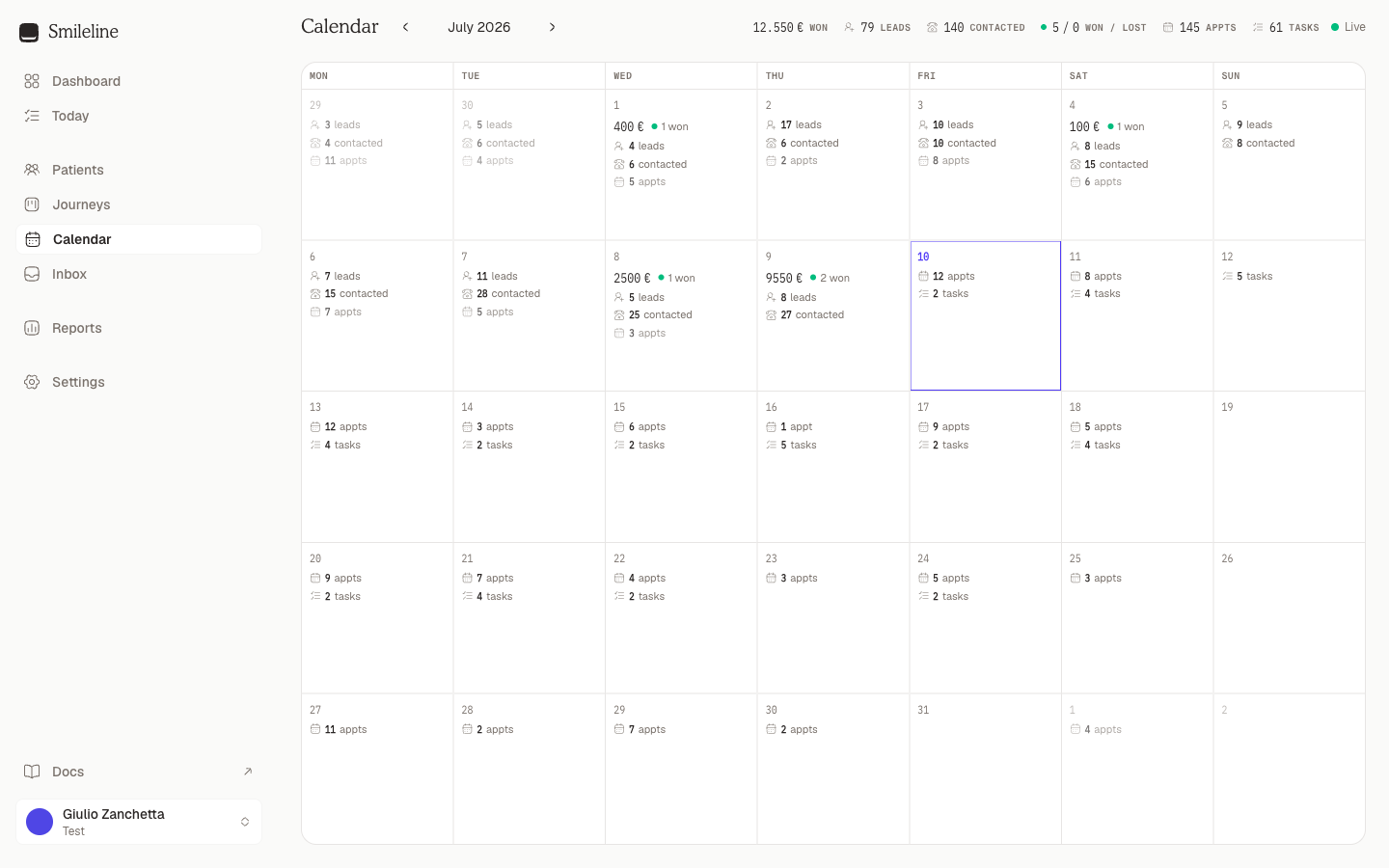
Reading the grid
Each cell is one practice day (weeks start on Monday, times in your practice's timezone). What a cell shows depends on where it sits relative to today:
- Past days show results: revenue won that day, journeys won and lost, new leads, and how many leads were contacted.
- Future days show workload: appointments taking place and tasks due.
- Today (outlined) shows both.
Days with nothing recorded stay blank apart from the date, so the busy days stand out. Metric meanings:
| Metric | Counts |
|---|---|
| Revenue won | Deal value of journeys won that day |
| won / lost | Journeys closed as won or lost that day |
| leads | New patients created that day |
| contacted | Distinct patients reached by an outbound touch that day |
| appts | Appointments taking place that day (cancelled ones excluded) |
| tasks | Open tasks due that day |
The header sums the visible month — the same numbers with the same icons, so it doubles as a legend.
Moving around
Use the arrow buttons next to the month name to step between months. When you're viewing a different month, a Today button appears to jump back to the current one.
The grid stays live: as leads arrive, tasks complete and journeys close, the numbers refresh on their own.
Open a day's detail
Click any day to see everything behind its numbers.
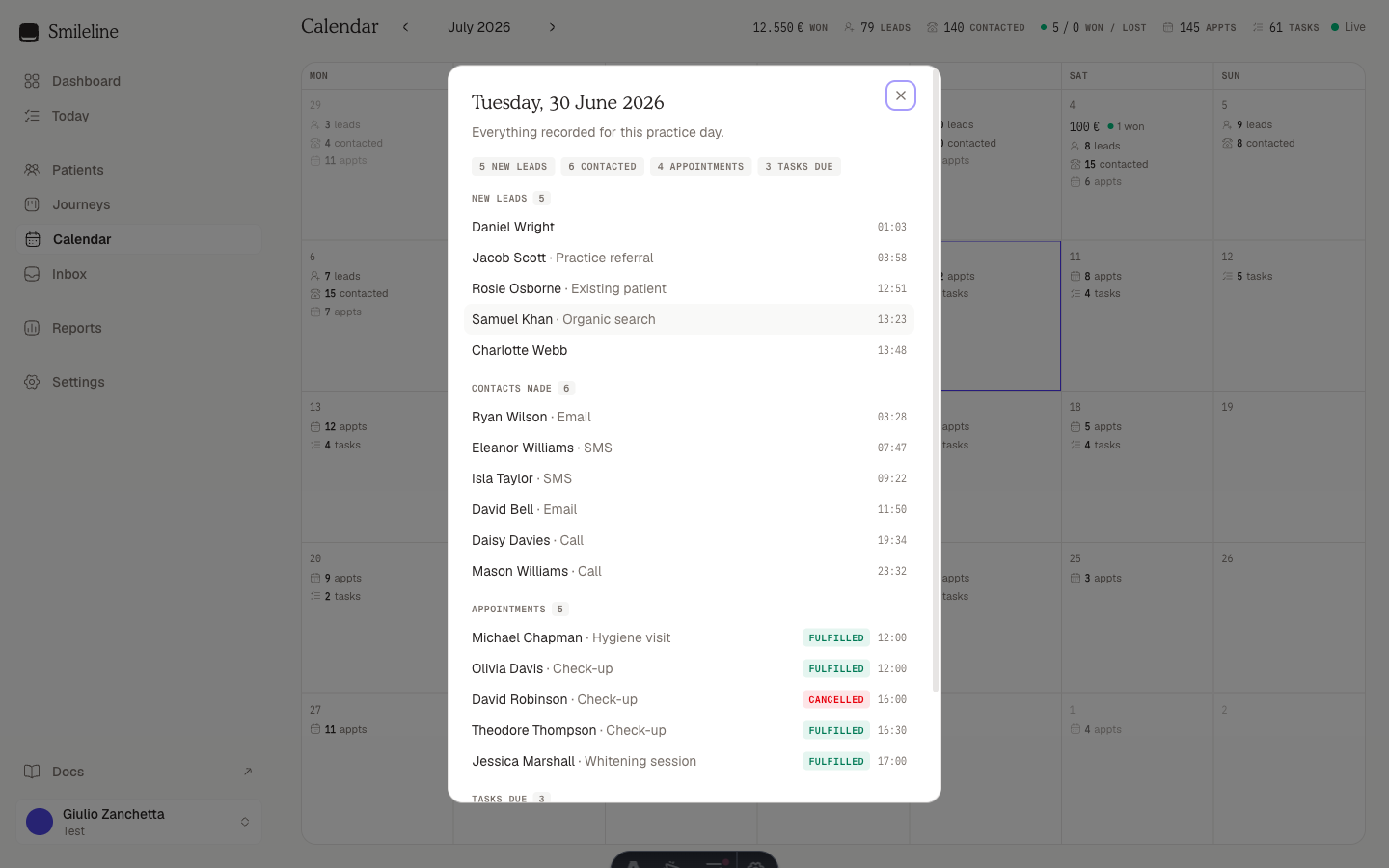
The dialog is a fixed size whichever tab you are on, so switching between them never resizes the panel. It opens on a row of tabs — Overview, Schedule, Bookings, Leads & contacts, Journeys and Tasks. The list tabs show their row count, and a tab only appears when it has something in it, so the strip doubles as a summary of what the day contains.
The four cards
Overview opens with four cards. Two of them pair figures that only mean something next to each other:
- Appointments — how many took place.
- Booked time — the chair time the day held, with the average appointment length beside it.
- New leads — how many arrived, with how many were contacted beside it.
- Revenue won — the value of journeys closed as won.
How the day compares
Most cards carry a small green or red badge showing how the day compares with the rest of the month you're looking at. The comparison uses two different baselines, because the two kinds of number behave differently:
- New leads and revenue won are compared against the month's days so far — future days haven't happened yet, and counting them as zeroes would make every past day look like a record.
- Appointments are compared against every day of the month, since they are booked ahead.
Booked time is the chair time the day held — cancelled appointments released their slot and are left out, a no-show held its slot and is counted, which is the same rule the Appointments card uses. Hover a badge to see which baseline it used. Ranges of several days show totals with no badge — a multi-day total isn't comparable to a daily average.
Breakdowns
Under the cards, up to four breakdowns of the same day appear two to a row — each only when there's something to show. Every one reads the same way: a row per category with its share of the day, the count on the right and its percentage beside it.
- Appointment status — the mix of booked, confirmed, fulfilled, cancelled and no-show, each status keeping its own colour. This panel counts cancelled appointments, so its total can be higher than the Appointments card, which matches the grid cell and leaves them out.
- Contacts by channel — calls, SMS, email, WhatsApp and recorded outcomes.
- New leads by source — where the day's leads came from.
- Won by treatment — the day's won value split by treatment.
Schedule
The Schedule tab draws the day as an hour-by-hour rail with each appointment as a block sized by its real length, coloured by status. A cancelled appointment gave its slot back, so it's drawn hollow with a dashed outline; a no-show held its slot and stays solid. Two blocks side by side means two appointments at the same time. Click a block to open that patient's record.
The rail spans from the first booking to the last. The tab is absent on a day with no bookings, and on a multi-day range — a merged range has no single day's clock to draw.
The row tabs
The remaining tabs list the rows behind the numbers:
- Bookings — every appointment with a status badge (Booked, Confirmed, Fulfilled, Cancelled, No-show, and so on) and its time.
- Leads & contacts — each new patient with their lead source and arrival time, then every outbound touch with its channel.
- Journeys — journeys closed as won or lost that day, with their value.
- Tasks — open tasks due that day.
Every row with a patient links straight to their record — click through to act on what you see. Opening the calendar from a booking notification lands you on Bookings with that appointment highlighted.
Look at a range of days
To review more than one day at once, drag across the grid with the mouse, or click a day and then Shift-click another. The same dialog opens with the stats summed over the range and the lists merged in date order, each row labelled with its day. The Schedule tab is absent — a merged range has no single day's clock to draw.
A range can span up to 45 days, and each section in the dialog lists up to 200 rows — a note appears if anything was cut off, and in that case the schedule and breakdowns cover the rows shown rather than the whole range. On a phone, the month renders as a tappable day list instead of a grid; tap a day to open its detail, where the schedule, breakdowns and lists stack in one column.
Request and track deposits
Send a deposit payment link mid-call, record cash payments, and handle refunds and no-shows.
Diary
The clinical workspace's day — a column per practitioner or room on an hour rail shaded by the rota, a date picker that shows how busy each day is, booking by click or drag, editing in the card, a 3-day view, and a short-notice gap filler.