Team calling
Split calling between openers and closers — one lead each, live hand-offs that connect by themselves, and promised call-backs when every closer is busy.
Live hand-offs, auto-answer and dialling from the team view use Smileline Voice, which is for practices in the United Kingdom and the United States. Calling roles, the team view, promised call-backs, live team activity and the Team calling report work in every country.
Team calling splits a telesales team into openers and closers. Openers work the list, find out what each lead wants and hand the interested ones to a free closer while the patient is still on the line. Closers take those calls and book them. Some teams run closers only: everyone works the same list, one lead each, and nobody picks. By the end of this page you'll know how to set the roles, start and stop calling with your shift, work in the team view, hand a patient over and see what the rest of the team is doing.
Give each person a role
Open Settings → Team members and click Manage on the person's row.
Under Team calling, click a card. It saves straight away, and the row shows Opener or Closer as a badge.
There are three modes:
- Standard — works Leads as usual: picks any lead, calls and books.
- Opener — works the list one lead at a time and hands interested patients to a free closer live.
- Closer — takes handed-over calls and promised call-backs, and books.
Owners and managers set them. Only someone whose role places calls — owners, managers, front desk and telesales — can be an opener or a closer, and changing a person's role puts them back on Standard. Taking a closer's role away stops their hand-offs straight away, even while their team view is still open. Everyone on Standard works Leads as usual.
Start and stop calling
Openers and closers always work Leads in the team view on a computer, in the browser or Smileline Desk: there's nothing to switch on. The view has no header; to look someone up, use the search field in the top bar (⌘K). New lead is in the top bar too, for roles that can create patients and journeys: the lead you add yourself opens straight away without ringing by itself, and the lead you were on comes back next, marked Next. In a window as narrow as a phone, and in the mobile app, you work the normal Leads list instead.
Your calling follows your shift:
- Clock in starts calling, wherever you clock in: in the team view, on My shifts or in the phone app. Clocking in on your phone starts calling on your computer too.
- Break pauses calling: no hand-off comes to you, nothing rings by itself, and your teammates see you On a break. Back carries on. Your timesheet doesn't change: the unpaid break from your rota is taken off as usual.
- Clock out ends calling, wherever you clock out, and so does a manager closing or voiding the timesheet entry you're clocked in on. You show Not started until you clock in again.
If there's nowhere for you to clock in, or you're already clocked in, press Start instead. Stop ends calling without clocking you out.
If you didn't clock out on an earlier day, finish that shift first: the sidebar offers Finish your last shift, where you enter when you really finished (see Clocking in and out). Nothing rings on this computer until it's done. If Smileline can't read your clock, the sidebar says Can't read your clock, with Retry.
A browser plays call audio only once you've clicked on the page. After you open or reload Leads while calling, the sidebar says Click anywhere to start taking calls: click anywhere, or press a key, and calls and hand-offs come through. Smileline Desk needs no click — open it while you're clocked in and calling carries on by itself.
The sidebar
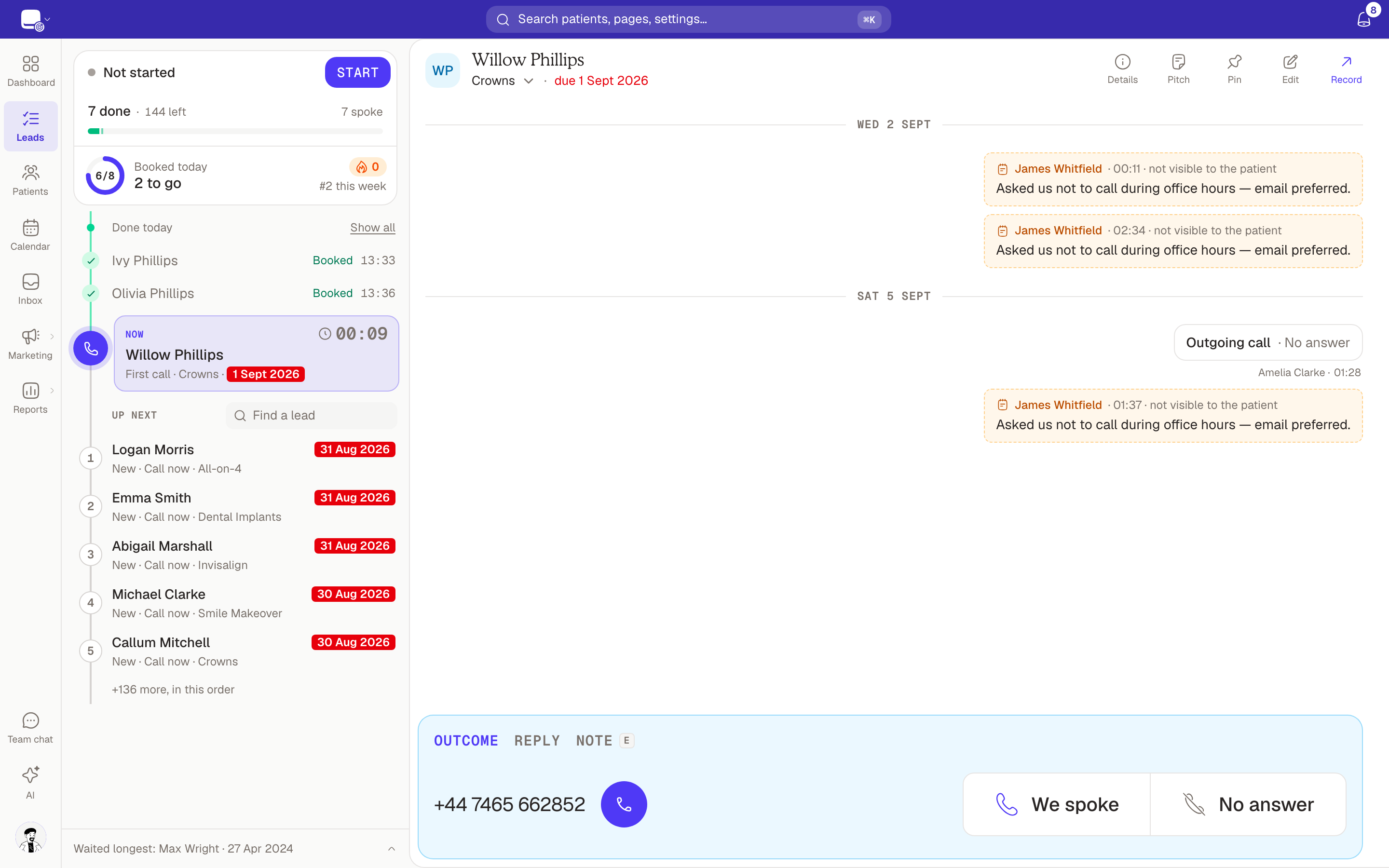
On the left of the team view, a sidebar shows your status, your day and the leads coming up. At the top, a card holds:
- What you're doing: your role and state, such as Closer · Waiting, Opener · Dialling or Closer · Wrapping up (you still owe an outcome); On a break; Not started; Handing over to a closer…; or a hand-off on its way, such as Tom is handing you Jane Smith. Paused means this computer can't take calls yet, for example before your first click. The dot beside it is green while you're taking calls, amber on a break and grey otherwise.
- The one button that fits: Clock in (or Start), then Break or Back. Clock in opens your clock, the same one as on My shifts. Clock out and Stop are in the ⋯ menu.
- A status when live updates drop, as in the Leads header: see Live arrivals.
- On a call, this line is the call itself: the patient's name, Calling… or how long the call has run, and End call, in place of your role and state. Click the name for Mute, the keypad, Hold and Transfer. The line keeps its height, so nothing moves as a call starts and ends; pop the call out into its own window and it moves there.
- When a call you placed goes unanswered or reaches voicemail: Next lead and Ring again (see Next lead and Ring again). In the team view they sit here, not beside the lead's number, and after a voicemail the line says, for example, Closer · Voicemail.
- Your day: how many outcomes you've saved (done), how many leads are left — the lead open now, Reached out, Call now, promised call-backs, Messages waiting, call-backs due and follow-ups due, as in the staff phone app's widget — and how many patients you spoke to, with a bar.
- Your booking goal, if you have one (see Your booking goal).
Below the card, your day runs down one line: N calls since 09:02 with the last two outcomes you saved (click Show all for every one today; outcomes for calls made on a practice phone show too), then the lead open now, then Up next, then At a set time — the leads due later today, earliest first. Your team is at the foot (see Live team activity).
The lead clock
The lead open now shows how long you've had it open, counting up from when it opened: grey, amber from 10 minutes and red from 15. It stands still while you're on a break and carries on when you press Back. A lead you come back to keeps its first opening; reloading the page starts the clocks again. In Standard Leads the clock sits after the lead's due words in its title.
One lead at a time
The view shows one lead: its work panel, the same as on Leads, with its thread and the box at the bottom.
Smileline picks the lead. While you're calling, it opens the next one in the Leads order and, with Smileline Voice, rings it after a 3-second countdown you can stop. Save the outcome and the next lead opens and rings. Nobody else is served the lead you have open, and a lead whose owner is on a call waits for them.
- The call row shows Calling in 3 · Stop. Click it, undo the outcome or open another lead to cancel the call. Click the call button to ring straight away.
- It rings only a call that is due now: a first call, a Call follow-up or call-back, a closer's promised call-back, or an automatic retry you may already call early. A call-back booked for later, a text, email or WhatsApp reminder, an enquiry, a row under Reached out or Messages waiting, a lead without a mobile number or a task someone has retitled opens without ringing — handle it, and the next saved outcome carries on.
- Attendance questions and online bookings to confirm never come to openers or closers: the rest of the team handles them, and bookings waiting for approval are in the Diary as Pending.
- A lead that gets booked — in the Diary or your practice system — leaves the list by itself (see When a visit is booked). The lead you have open stays while it's open, and leaves once you've moved on.
- It waits while you are still on the previous call, and cancels if a call comes in or a hand-off is on its way to you. It only rings while Leads is in front of you.
When calling starts — you clock in, come back from a break or make your first click — the first lead opens if none is and, with Smileline Voice, its countdown begins. A countdown you stopped isn't started again for that lead. Nothing rings by itself while you're on a break or not started.
When you answer a patient who rings the practice, their lead opens straight away, even mid-call, so you can save how the call went; the lead you were on comes back next, marked Next. A caller with nothing on today's list opens their record over Leads instead.
When nothing is left to call, the view says Nothing to call right now: new leads open there as they come in, and for a closer a hand-off rings through by itself.
Outside the team view — in a phone-sized window, where you work the normal Leads list — double dial also rings only while you're calling.
Up next
Up next in the sidebar lists the leads in the order Smileline will open them, numbered, each with its name, why it's queued (such as New · Call now or Follow-ups due) and its treatment, and how long it has waited or when it's due. The first five show, with +N more, in this order and See all under them (see See all and pins).
Everyone works the same order, so your teammates are often on the leads just ahead of you. A lead a teammate has open stays in its place, greyed, with their picture and a lock showing their first name; you can't open it, and it's never opened for you. When a teammate books one of those leads, it turns green for a moment — Booked by Ella — and then goes.
To call one of them now, click it: it opens and, with Smileline Voice, rings after the countdown. The lead you were on comes straight after it — first in Up next, marked Next — so nothing is skipped; jump more than once and the leads you left come back in reverse order. A lead a teammate has open, or one on a call, can't be opened, and while you're on a call or still owe an outcome the list is for reading only. Reloading the page forgets the leads you jumped away from, and the Leads order carries on.
To find a particular lead, type in Find a lead on the Up next line: part of their name, or three or more digits of their number (with or without the 0 at the start). The list shows Matches instead, still in the Leads order and each with its number there, so you can see how far ahead it was. Click one, or press Enter for the first, and it opens now, just as a click in Up next does: the lead you were on comes back next, marked Next. A lead a teammate has open shows greyed and can't be picked. Esc or the ✕ clears the search.
See all and pins
Click See all under Up next to see every lead of the day by type, in a drawer over the lead: Pinned first, then the types in the Leads order — such as Reached out, New · Call now, Follow-ups due, Later today and Upcoming — each with its count. Click a type's name to fold it away or open it again, and type in Find a lead in any type to search them all, by name or number as in Up next. The lead open now says Open now, and a lead a teammate has open shows greyed with their picture and first name.
Click a lead to open it now, as a click in Up next does: the lead you were on comes back next, marked Next. One due later today or on another day opens to look at and work, without ringing by itself, and still isn't opened for anyone before its time. A lead a teammate has open, or one on a call, can't be opened, and while you're on a call or still owe an outcome nothing opens from the drawer. Esc clears the search, then closes the drawer.
To pin a lead for the whole team, point at it in Up next or the drawer and click the pin (Pin to the top for everyone); a pinned lead's pin stays amber, and clicking it again unpins it. The pin beside Find a lead shows how many leads are pinned; click it to open the drawer on Pinned alone. Pinned leads show first for everyone and are called when their next call is due, and booking a pinned lead unpins it (see Pinning a lead). A missed call or chat from someone your practice knows can be pinned too.
Your booking goal
If your practice has given you a daily booking goal (Settings → Team members, see Targets), the sidebar's card shows it as a ring: Booked today with what's left, such as 2 to go, then Goal met, then how far past it you are. Beside it are your streak and your place in this week's league. Click it to see your streak — days now, best ever, the month day by day — and this week's league side by side, as in the staff phone app. Openers don't have a goal row yet.
Past your goal the card heats up: flames along the goal row, then embers and an orange glow from 150%, gold from 200% and a rainbow from 300%.
Fast bookings
When a call on the lead you have open is answered, a 15-minute window starts. It shows on the lead's card a minute later, if Smileline hasn't flagged a voicemail, already at Fast booking: 14:00 left; nothing shows before then. A voicemail flag cancels it, and the bar goes. For a closer, the window starts when a hand-off connects. Book within it and the booking is a fast booking.
Celebrations
With a booking goal, saving They want to book a consultation plays a short celebration: Booked with your ring, a faster one for a fast booking, Daily goal met with your streak, and On fire past your goal. From 150% of your goal every booking gets louder, up to 300%, and stays until you click it; from 200% the whole lead joins in. A celebration waits while you're on a call or one is ringing, and steps aside the moment a call rings or a hand-off is offered to you. Nothing celebrates without a goal, in Standard Leads or for openers, and nothing moves for anyone whose computer is set to reduce motion.
Hand a patient to a closer
Openers have a hand-over button at the end of the lead's title line, so it stays there through every step of the outcome card. Its label says what will happen if you use it now:
- Hand to Sarah — a closer is free: calling and waiting. The button names the one who has waited longest. Smileline picks again when you press it, so another free closer may take the call.
- Closers busy · promise a call-back — no closer is free right now.
- Promise a call-back — there's no live call to hand over, because the call has ended or your practice doesn't have Smileline Voice.
While you're on the call, click the button.
Write a Note for the closer: what the patient wants, and what you told them. The note is required, up to 500 characters, and it is also saved to the lead's Notes.
Click the same button under the note.
When a closer is free, your part of the call ends at once and the patient hears hold music while Smileline reaches the closer, whose computer answers by itself. You see Handed to Sarah, the lead goes to her, and your next lead opens and rings.
If that closer doesn't answer within 10 seconds, Smileline tries the next free one. If no closer answers, the patient comes back to you: your device rings so you can take them back. If you don't answer either, they can leave a voicemail, and a promised call-back goes to the closers.
When no closer is free, promising ends the call and saves They want to be contacted again later with your note. You see Promised: a closer will call them back first. and your next lead opens. The same happens if the last free closer got busy just before you pressed Hand to Sarah.
Openers can always book. The whole outcome card is there, so a patient who is ready to book never has to wait for a closer.
Take a hand-off
You're ready for hand-offs while you're calling — clocked in or started, and not on a break — with the team view open on a computer that can play call audio (in a browser, after your first click), calling enabled and Do not disturb off. The browser tab doesn't have to be in front. Smileline never offers a hand-off to a closer who is on a break, not started or clocked out, whatever another of their screens shows.
Once a call on the lead you have open ends — one you placed or a hand-off — you show Wrapping up and take no hand-off until you save its outcome. Saving it makes you ready again, counted as waiting from then, so the closers who were already waiting go first.
A hand-off connects by itself, without a click. If you're ringing a lead who hasn't answered yet, that ring is stopped to make way, and it doesn't count as a try. While the hand-off is on its way, your countdown stops, and a new call you start is refused with A patient is being handed to you right now — take that call first.
The lead opens with Handed over by Tom and the opener's note at the top of the task card. Record the outcome as usual. When you save it, the lead becomes yours: you're its owner from then on, and Undo gives it back to its previous owner.
In the rare case that the lead you were ringing picked up at the very moment that ring was stopped, Smileline adds a call-back due straight away, noted We cut this call as they answered — call back now.
On a phone, hand-offs don't connect by themselves: a closer using the mobile app works the normal Leads list and still shows in the team's live activity.
Promised call-backs
A promise from an opener — or a hand-off that nobody could take — becomes a call-back due at once, with the opener's note. It shows on every closer's Leads list under Promised call-backs, oldest first, straight after the new leads nobody has called yet and ahead of chats, other call-backs and follow-ups, and the team view rings it in that order. Whichever closer is free next takes it. Openers never get promised call-backs; owners and managers without a calling role see them among the other Call-backs due.
If nobody answers a promised call-back, its next try stays with the closers. The closer who records its outcome becomes the lead's owner, as with a live hand-off.
Who works which lead
- Everyone works one shared list, one lead each. A lead someone has open is held for them.
- A lead's follow-ups go to whoever is free, except while the lead's owner is on a call: then the next lead skips them and leaves them for the owner.
- A lead whose patient is on a call with anyone in the practice is never served to someone else.
- A live hand-off moves the lead to the closer; a promised call-back moves it to the closer who records its outcome.
Live team activity
Openers and closers see their teammates as small faces at the foot of the sidebar — their photo, or the avatar Smileline made them if they haven't uploaded one — up to four, then +N — each ringed in the colour of what they're doing; click them for the list. Everyone else sees the same line under the list of leads, on the web and in Smileline Desk. The list shows:
- each teammate who has Smileline open, with what they're doing — On a call, Dialling, Hand-off coming, Waiting, Wrapping up, On a break, Paused, Not started or just Online — and for how long;
- the lead they're on, when your own Leads list shows it;
- underneath, what has waited longest: Waited longest with the oldest new lead nobody has called, Promised call-backs waiting (for closers and managers), and Retries ending today — automatic retries whose 3 calling days end today.
Paused is an opener or closer who is calling but can't take calls on a computer just now — before their first click, for example.
A teammate on a call shows as on a call even when their call is on the mobile app running in the background.
The Team calling report
Open Reports → Team calling to see how hand-offs are going over the dates you pick:
- Openers — for each opener, patients handed over live and call-backs promised, hand-offs per calling hour, their own bookings and the hand-offs that went on to book.
- Closers — for each closer, the hand-offs they received, how many booked and the booking rate.
- How long promised call-backs waited, the longest one still open and how many are open now.
- Retries expired untried — automatic retries whose 3 calling days ran out before anyone saved how they went.
- Hand-offs by hour of day, live and promised.
A hand-off counts as booked when the lead that was handed over books in Smileline after the closer took the call (for a promised call-back, after it was promised) — the dashboard's Bookings made. A booking on the same patient's other lead, or one made before the hand-off, doesn't count.
People are counted under the role they have today: when someone moves from opener to closer, their past figures move with them. See Reports for filters and email digests.