Sign in
Sign in to Smileline with your email and password, a passkey, or Google or Apple, and reset your password when you forget it.
By the end of this page you'll be signed in and looking at your landing page — the Leads queue for most roles, the Diary (Schedule in the US) for clinical roles. Workspaces explains which is which.
Sign in
On smileline.io, choose Log in. On mobile, open the menu in the top-right corner first. Desktop and mobile menus reveal smoothly; if your device requests reduced motion, the menus open without animation. Moving between desktop navigation items slides and fades between menus.
Go to the Smileline sign-in page, enter your Email, and click Continue.
On the regional login card, enter your Password and click Login. To check what you typed, click the eye icon in the password box; click it again to hide it. The sign-up and reset-password forms have the same eye. If your email has accounts in both service regions, choose the account you want first.
You land in your default workspace: Leads, the daily work queue, in the CRM — or the Diary if your role works in the clinical workspace.
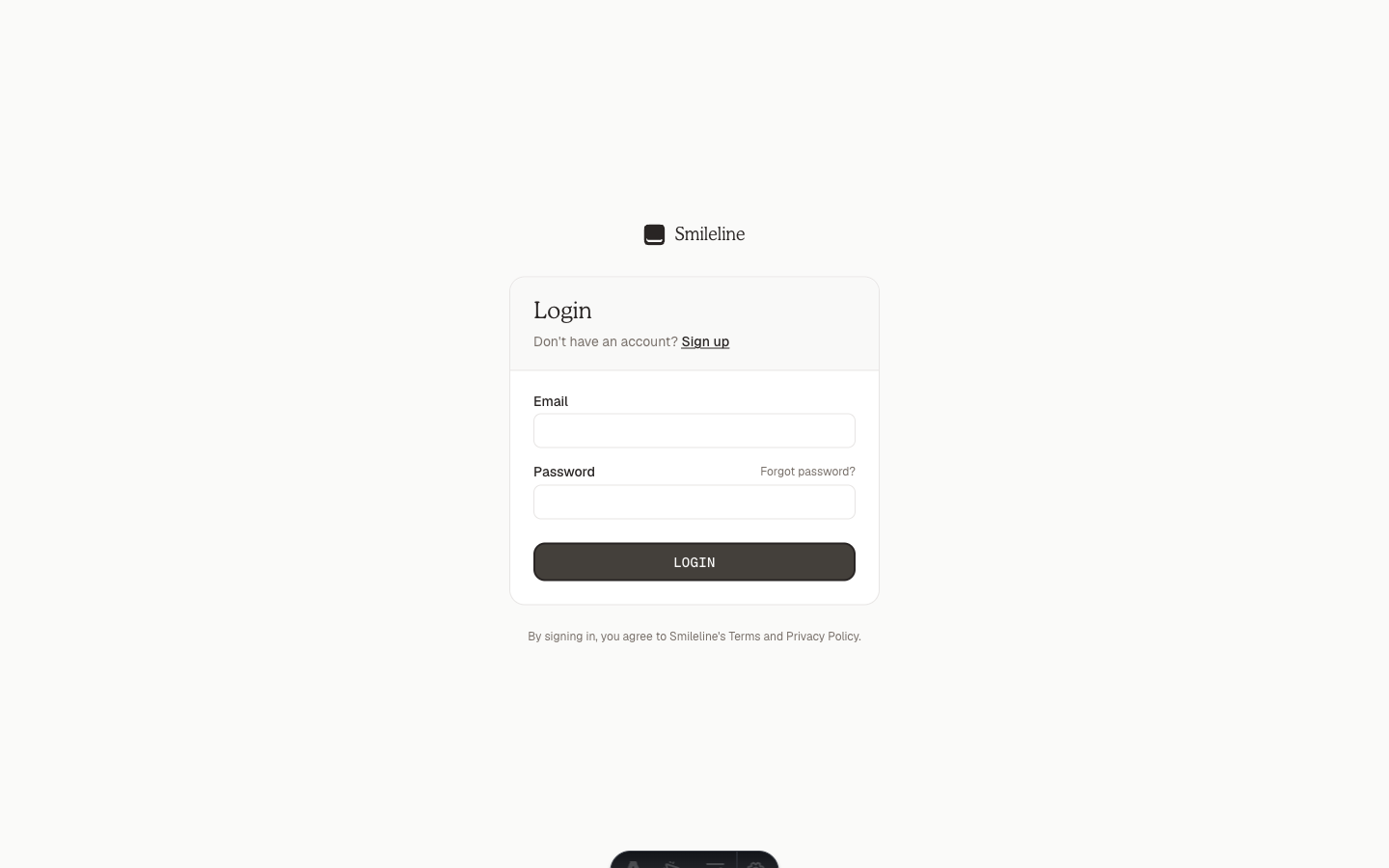
Don't have an account yet? Click Sign up on the login card and enter your Full name, Email and a Password (at least 8 characters). Tick I agree to Smileline's Terms of Service and Privacy Policy — the links open both documents, and your acceptance (version, time) is recorded to your account — then click Create account. After you choose your practice country you can also sign up with Continue with Google or Continue with Apple instead. If a colleague invited you, use the link in the invitation email instead: it opens the right form with your email already filled in and takes you straight into their practice.
Sign in with Google or Apple
On the login card, click Continue with Google or Continue with Apple and approve the request with that provider. If you already have a Smileline account under the same verified email address you're signed straight into it.
If there's no Smileline account for that Google or Apple ID yet, you're taken to Sign up. Choose your practice country and click Continue: Smileline goes back to the same provider — Google usually doesn't ask again, Apple does — creates your account, and you continue into practice setup.
If your account lives in the other service region, the login card can't see it and also sends you to Sign up. Choose your practice country and you're signed in to your existing account instead of getting a new one; you may see the provider screen once or twice more. When the region genuinely can't be determined, sign in with your email and password instead.
Signing in with Google or Apple skips Smileline's two-factor verification: the provider's own protections — password, passkey, and device checks — stand in for it.
Apple can hide your real email address behind a private relay address. If your Smileline account uses your real address, a first Apple sign-in with Hide My Email creates a separate, empty account instead of opening yours. To use Apple with an existing account, sign in with your password first and connect Apple under Settings → Account → Sign-in methods.
If Smileline cannot reach the sign-in service, the login card shows an error and lets you try again. Check your connection before resubmitting your password.
If you reach the wrong service region, click Try EU account region or Try US account region after the failed login. You can also pin the region before you sign in: the selector in the top-right corner of the login card offers Auto, EU and US. Auto locates your account from the email address you enter; EU or US sends you straight to that region and is remembered on this browser. These choices are always available and do not confirm whether an account exists in a region.
Sign in with a passkey
Once you've added a passkey, you can sign in without typing anything. On the login card, click Continue with a passkey and confirm with your fingerprint, face or device PIN when your browser asks. You don't enter your email, and there's no two-factor code: the passkey and your device's own check are two factors already.
If Passwords opens with that passkey, the same touch opens it too, even on a browser you've never used Smileline on before (see Add a passkey). This works only where the passkey's device or password manager supports the WebAuthn PRF extension; with any other passkey you're signed in, and you open Passwords as usual.
A passkey works only on the Smileline site it was made on: one added on eu.smileline.io signs in there, not on us.smileline.io. Smileline Desk and the Smileline phone app don't offer passkeys; sign in there with your password, Google or Apple.
Complete two-factor verification
If two-factor authentication is enabled on your account, Login opens a second verification page instead of signing you in immediately.
Open your authenticator app and enter the current six-digit code.
Click Verify and continue. Smileline creates your signed-in session only after the code succeeds.
If you cannot use the authenticator, click Use a backup code instead and enter one unused backup code. Each backup code works once. Store the remaining codes somewhere private; they are not shown again after setup.
Five failed checks exhaust the current verification request. Return to Sign in and start again. Repeated failed requests can lock second-factor checks for 15 minutes; wait for the lock to end before trying again.
Reset a forgotten password
On the login card, click Forgot password?.
Enter your Email and click Send reset link. If an account exists for that address, a reset link is on its way.
Open the email and follow the link. Choose a New password (at least 8 characters) and click Reset password.
You're taken back to the login card — sign in with the new password.
Reset links expire. If the page says the link is invalid or has expired, click Request a new one and start again from your inbox.
If you haven't signed in with your password since mid-November 2026, it may stop working on 15 December 2026, when Smileline finishes changing how passwords are checked: Smileline then says it's wrong even when it's right. Reset it as above and sign in with the new one. On 8 December 2026 Smileline emails a reminder to every account that hasn't switched over yet.
Change your sign-in email
Open Settings → Account. Under Profile, enter the New email and click Change email.
If your current email is verified, Smileline first emails your current address. Open that email and follow its link to approve the change; it works once.
Open the email Smileline sends to the new address and follow its link. If your account has a password, the page that opens asks for it, because Smileline protects your password with your email: enter your Password and click Confirm.
From then on you sign in with the new email. If you sign in only with Google or Apple, the link to the new address changes the email straight away, with no password to enter.
If the page says your password isn't right and you haven't signed in with your password since mid-November 2026, reset it first with Forgot password? on the login card (see Reset a forgotten password), then open the link again. If another account has taken the new address in the meantime, the page says so: change your email again to another address.
The link to the new address works once, for an hour. If the page says the link is invalid or has expired, change your email again from Settings → Account.
Account emails
Verification, password-reset and invitation emails come from Smileline at
support@smileline.io. Replies go to Smileline support. If an expected email
lands in junk or spam, mark it as Not spam and add the address to your
contacts. Never share your password or a sign-in or reset link in a reply.
Manage your sign-in methods
Open Settings → Account and find Sign-in methods to see what's connected to your account: Email & password, Google, and Apple.
- Connect sends you to the provider to approve the link, then returns you to Settings with the method attached. This is the safe way to add Apple to an existing account, whatever email Apple shows.
- Disconnect removes a method. Your last remaining sign-in method can never be removed.
- Changing sign-in methods requires a recent sign-in. If Smileline asks you to sign in again first, do so and retry.
Add a passkey
A passkey lets you sign in with your fingerprint, face or device PIN instead of your password. It's kept by your browser, your phone or your password manager, and never leaves it.
Open Settings → Account and find Passkeys.
Click Add a passkey. If your account has a password, enter it to confirm it's you. If you sign in only with Google or Apple and your last sign-in wasn't a moment ago, Smileline asks you to sign in again first: click Sign in again, then add the passkey.
Follow your browser's prompt to save the passkey, and confirm with your fingerprint, face or device PIN.
If Passwords is open in this browser when you add the passkey, and the passkey supports opening it (its device or password manager supports the PRF extension), the passkey opens Passwords too: signing in with it opens your passwords at the same time, and Smileline says so when you add it. Otherwise, open Passwords first, then add the passkey.
Each passkey is listed with the date you added it. Click Rename to give it a name you'll recognise, such as the computer or phone it's on, or Remove to stop it signing you in. Removing a passkey also stops it opening Passwords. If it's the only thing left that opens your Passwords, or Smileline can't check, it warns you before removing it: without it you'd have to start Passwords again, and each group's passwords would need to be shared with you again.
Passkeys doesn't show in Smileline Desk or in a browser that doesn't support passkeys.
Add a password
If you sign in only with Google or Apple, your account has no password. Password in Settings → Account then offers Add a password: enter a New password (at least 8 characters), confirm it, and click Add a password. You can then sign in with your email and that password too, and open Passwords with it in the browser extension.
Adding a password needs a recent sign-in. If Smileline asks, click Sign in again, then add it. If you already use Passwords, open it first (with your fingerprint or a passkey) in the same browser: Smileline asks you to, so that the new password opens your passwords too. It then stays open; on other computers, open it again with the password.
Staying signed in
Once you sign in, Smileline keeps your session on that browser, in Smileline Desk, and in the mobile app — you won't be asked for your password on every visit. A session lasts 30 days, and every day you use Smileline extends it by another 30, so you are only signed out after a month without using it. Updates and new releases never sign you out.
The only other things that end a session are deliberate: you sign out, you choose Sign out other sessions in Settings → Account, you delete your account, or a platform administrator revokes your access. A few sensitive actions — connecting or disconnecting a sign-in method, deleting your account — ask you to sign in again if your last sign-in was more than a day ago, but that does not end your session anywhere else.
Your practice can also sign people out sooner, under Settings → Security: after a period without activity, or after a maximum session length. Two minutes before an inactivity sign-out, the web app asks whether to Stay signed in. If you're signed out by one of these rules, the sign-in screen tells you why. It signs that browser or phone out of every practice you belong to; signing in again always works.
On a shared front-desk computer, sign out when you finish: click your avatar at the bottom left, then Sign out.