Channels
How WhatsApp, SMS, email, Telegram, Messenger, Instagram, TikTok, comments and live-chat messages reach the Inbox, and the rules for each channel.
SmileLine connects your messaging channels into one shared Inbox: WhatsApp, SMS (via Twilio, or from your own Voice number), Email, Telegram, Messenger, Instagram DMs, TikTok direct messages, Facebook and Instagram comments, and Live chat (the website chat widget). This page explains how messages flow into the Inbox and what each channel allows, so you know what to expect when replying.
How conversations flow in
Once a channel is connected, inbound messages arrive in the Inbox automatically:
- A message from a number or address SmileLine already knows lands in that patient's existing thread.
- A message from a sender who is not linked to a patient opens a new conversation. The conversation and Contact details panel show the sender's name when available, otherwise their number, address or channel ID. Link it to a patient so it lands on their timeline.
- A patient reply reopens a closed or snoozed conversation, so it always resurfaces in the Open tab.
- A message that arrives while its connection is paused or in error (a failed Test, an expired token) is kept and delivered into the Inbox once the connection is active again — it is never lost.
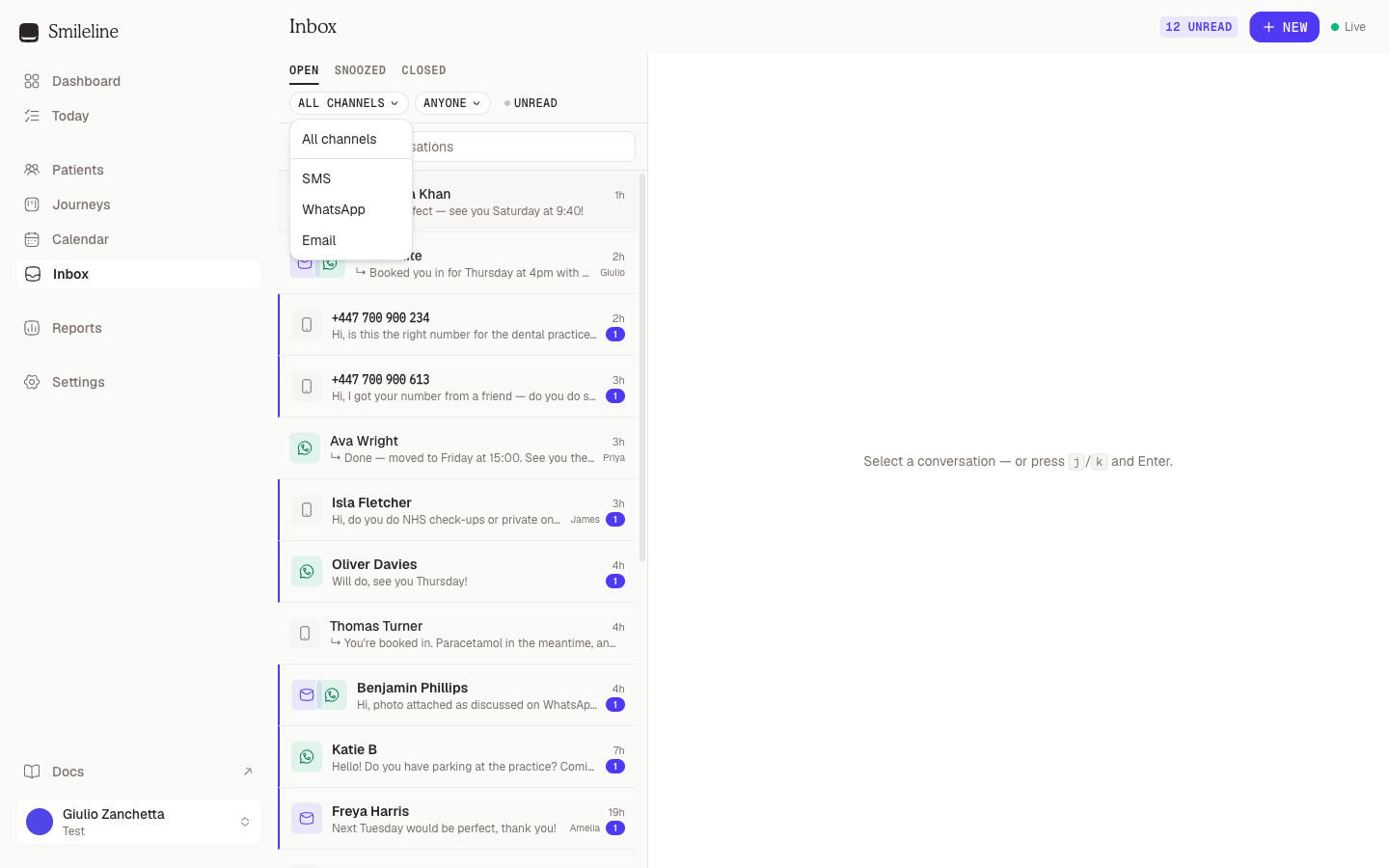
Each patient has a single thread that can span channels. Their WhatsApp messages, texts and emails all appear in one conversation, and every message carries the icon of the channel it travelled on.
Replying STOP by WhatsApp or SMS immediately blocks that channel for the linked contact, even if the connection has just been paused or disconnected. Provider retries do not append another opt-out record. One shared contact can represent up to 25 patients. If a legacy contact exceeds that limit, SmileLine keeps the whole contact blocked while the patient links are reviewed. START can restore consent only through an active connection and cannot clear a block that still needs review.
Incoming attachments on WhatsApp, Telegram, Messenger, Instagram, comments and MMS can briefly show Loading… while SmileLine copies them from the provider into durable storage. That copy is retried automatically if the provider or storage is temporarily unavailable. If the provider no longer makes the file available after all retries, the thread shows Attachment unavailable rather than loading forever.
Photos and stickers show inline, and videos and voice notes play in the thread. PDFs, documents, active content and unknown file types download instead of opening as a page on the API origin. Every file chip shows its size.
Live chat threads come from the website widget. Replies you type are pushed to the visitor's browser in real time (with your first name, so they know a human joined), and the contact panel shows which page they're chatting from. Templates aren't available on live chat, but attachments are — in both directions: visitors can paste, drag or pick a file in the widget, and you can reply with one from the composer. The widget's own visitors show read ticks on your latest message once they've seen it.
Choosing a channel for a reply
When a thread spans channels, the composer's channel picker decides which one your reply rides. It defaults to the channel the patient last wrote on. A channel is unavailable when its connection is disconnected or the patient has opted out — the picker greys it out and shows the reason.
Channel rules
WhatsApp allows free-text replies only within 24 hours of the patient's last message (the "24-hour window"). While the window is open, the composer shows a countdown when it's about to close. Once it closes, the composer switches to approved templates only — pick one to restart the conversation, reply on another channel, or leave an internal note instead. Starting a brand-new WhatsApp conversation also requires an approved template. See Message templates.
One attachment per message while the window is open, following WhatsApp's own media rules: JPEG or PNG photos up to 5 MB and MP4 video or audio up to 16 MB go out as media; a small WebP goes out as a sticker; anything else — a PDF, a Word document, a GIF, a larger photo — is delivered as a file the patient can open, exactly as WhatsApp itself does. Text sent with a photo, video or file becomes its caption; WhatsApp has no caption on a voice note or sticker, so the composer asks you to send that text separately.
If you connected your WhatsApp Business app, new messages your team sends there also appear in Smileline. They are shown as outbound messages without an unread notification or a new reply window. Earlier chats are not imported.
No subject lines. Sent through your connected Twilio number, or from your own SmileLine Voice number once texting is enabled on it (see Settings → Channels). A text of HELP or INFO is answered automatically with the practice's name, contact details and opt-out instructions — once per request, even after STOP.
MMS — picture messages — exists only between US and Canadian numbers, so the paperclip appears when both your sending number and the patient's are +1 and stays hidden otherwise. From a Voice number a message carries up to 10 files and 1 MB of media in total (JPEG, PNG, GIF, MP4, 3GP or a vCard); on Twilio, up to 10 files and 5 MB. Incoming MMS photos and videos land in the thread like any other attachment.
Supports subject lines, formatted content and attachments. When replying, leave the subject blank to continue the thread's latest subject. Long emails are collapsed in the thread — click Show full email to expand.
An outbound email can include up to 20 attachments, each no larger than 16 MiB and no larger than 25 MiB combined. An incoming email is limited to 25 MiB for the complete raw message and up to 20 attachments, each no larger than 10 MiB and no larger than 20 MiB combined. A connected Outlook mailbox uploads files over 3 MB in parts, as Microsoft requires; a connected Gmail mailbox refuses the executable file types Google blocks (.exe, .bat, .js, .msi and similar), and the composer says so before sending.
For abuse and cost protection, each connected email address accepts a fair-use quota of up to 10,000 incoming messages or 10 GiB of raw email per UTC day, whichever is reached first. Mail above a limit is refused with an error naming the reason, so the sending server returns it to the sender rather than the message silently disappearing — nothing is ever partially imported.
When a page contains several exceptionally large formatted emails, SmileLine may show the safe plain-text version for later messages instead of loading more stored HTML. The message and its attachments remain in the conversation.
A connected Gmail or Outlook mailbox behaves the same in the composer, with replies sent from your own address and filed in the mailbox's Sent folder. Incoming mail written by a person creates or continues a conversation; newsletters, no-reply notifications, auto-responders and delivery reports stay in the mailbox and are skipped, as does anything Gmail has labelled spam or trash and any message over the 25 MiB limit. Each skip is recorded: the connection's card under Settings → Channels shows 12 emails skipped under its status line once the count is above zero, and if the rules change later that mail can be brought in without re-syncing the mailbox. A mailbox whose sync paused after repeated failures says so on its card under Settings → Channels; a successful Test there resumes it. Mail your team sends directly from Gmail or Outlook appears in the thread labelled as sent outside SmileLine.
Telegram conversations start with the patient: they message your practice's bot, and the thread appears in the Inbox. Replies go out as the bot, with no time window — you can reply whenever consent allows. New conversations cannot be started from SmileLine on Telegram.
Messages are plain text up to 4,096 characters. A reply can carry one attachment, and text sent with an attachment is its caption, limited to 1,024 characters — the composer refuses anything longer before it sends. Photos, GIFs, MP4 videos, MP3/M4A audio and OGG voice notes go out in Telegram's own form for each; anything else goes as a document. Incoming photos, GIFs, documents, voice notes, stickers and videos up to 16 MiB are copied into the conversation like WhatsApp media.
Messenger and Instagram direct messages allow replies only within 24 hours of the person's last message, with no template escape — once the window closes the endpoint shows Reply window closed and you reply on another channel instead. The composer shows a countdown as the window nears its end.
Meta's messages carry only an account id. Smileline looks up the person's Meta profile, then checks the participants in that specific conversation if the profile gives no name. Messenger uses the person's name; Instagram uses their profile name or @username. Meta must grant access to the requested information. If neither lookup provides a name, the thread keeps the id and tries again when another message arrives. A full profile name automatically links an unassigned conversation when it exactly matches one eligible patient's first name and surname in your practice, ignoring capitalisation and extra spaces. A username or a name shared by several patients needs a manual link. Existing names and patient links are preserved. See patient matching and linking.
Messages that arrive while another tool (a separate inbox product connected to the same Page) owns the conversation still land in the thread, but Meta refuses replies from Smileline until that tool releases the conversation. Replies staff type in Meta's own apps appear in the thread too, labelled sent outside SmileLine, so the conversation always reads complete. When someone unsends a message, the bubble becomes Message unsent — the history stays, the content goes. A reply can carry one attachment while the window is open, sent without text (Meta has no caption): on Messenger any image, video, audio or file; on Instagram a JPEG or PNG image, an MP4/MOV/WebM video, AAC/M4A/WAV audio, or a PDF — the composer refuses other formats before sending. Incoming stickers, reels and shared posts arrive in the thread too.
TikTok conversations start with the patient: they message your practice's TikTok Business Account, and the thread appears in the Inbox named after their TikTok profile. New conversations cannot be started from SmileLine on TikTok.
Replies are allowed only within 48 hours of the patient's last message, with no template escape — once the window closes the endpoint shows Reply window closed and you reply on another channel instead. TikTok also limits a business to 10 consecutive messages before the patient answers again; a reply over that limit fails with TikTok's reason on the message.
Replies are text-only. Incoming photos are copied into the conversation; a shared TikTok post arrives as its link; stickers, videos and voice notes arrive as Unsupported TikTok message. Open TikTok to view it. so nothing goes missing. Replies your team types in the TikTok app appear in the thread too, labelled sent outside SmileLine.
TikTok does not deliver direct messages through its API for Business Accounts registered in the United Kingdom, the European Economic Area, Switzerland or the United States; see Settings → Channels.
Comments on your Facebook Page posts and Instagram posts arrive as conversations, one thread per person — all of someone's comments across posts share a thread, and each message notes which post it was on.
The composer offers two modes: Public reply posts under the comment; Private reply sends a one-time DM (Meta allows one private reply per comment, within 7 days). A public reply on a Facebook comment can carry one image (JPEG, PNG or GIF); private replies and Instagram comment replies are text-only. If the person answers your private reply, the conversation continues as an ordinary Messenger or Instagram DM thread. A comment the author deletes becomes Message unsent in the thread.
Attachment limits depend on the channel, and the composer shows the rule for the channel you are replying on (hover the paperclip). Every upload is limited to 16 MiB per file. Outbound email supports up to 20 files and 25 MiB combined; incoming email allows up to 20 files, 10 MiB per file and 20 MiB combined.
Connecting and managing channels
Channels are set up in Settings → Channels by an owner or admin: choose Add channel to connect a WhatsApp number, an SMS number, an email address or a Telegram bot, then use Test to verify the connection. The full setup walkthrough, including the webhook and inbound-address details your provider needs, lives in Settings → Channels.
If no channel is connected yet, the New conversation dialog will tell you — connect one in Settings → Channels first.